The Logging Pane (Interplay | MAM)
The Logging pane provides you with an arrangement of controls defined for use in logging Interplay Production assets or Interplay MAM assets. The layout of the Logging pane adapts automatically depending on the asset you open:
• If you open an asset from an Interplay MAM database, you can create, view, and edit segments and segment annotation.
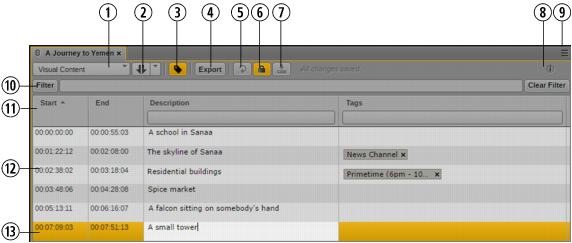
The following illustration shows a series of segments for an Interplay MAM asset in the Logging pane. Displays and controls are described in the accompanying table.
| Display or Control | Description |
1 | Strata list | Contains the strata and strata groups configured for editing. The name of the selected stratum or strata group is shown on the collapsed list. When you open an asset in the Logging pane, the stratum that you used the last time for an asset of that asset type is automatically selected. |
2 | New Segment control | Is shown when logging is configured to allow gaps and for strata that allow overlapping segments. Creates a new segment with one of the following options: |
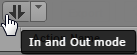
| | • In and Out mode: Sets the In and Out marks at the positions you defined in the Media Timeline. |
| | • Playhead position mode: Sets the In mark at the current playhead position but does not define an Out mark. You see the selected mode when you hover the mouse pointer over the New Segment control. See Creating Segment (Gaps Allowed). |
3 | Display Type button | Toggles the Segment List display between Grid and Tags view. • When toggled off, the button is colored gray, and Grid view is active. Shows a separate column for each text and non-text property. Grid view is active by default. • When toggled on, the button is colored orange, and Tags view is active. Shows a separate column for each text property and one column for all tags (labeled “Tags”). |
4 | Export button | Displays options for exporting strata information. See Exporting Strata. |
5 | Refresh button | Updates the display of segments saved for the selected stratum. This control is especially useful when you switch to a stratum that is currently edited by another user who is adding segments to the same clip. If the focus is in the Logging pane, you can also press F5 to update the display. |
6 | Lock button | Locks or unlocks the selected stratum and indicates if the stratum is already locked for editing. See Locking a Stratum. • Gray: You can manually set a lock by clicking the Lock button. If the stratum is already locked, for example, because another user is already editing the stratum, a tooltip is shown when you click the button. • Orange: The stratum is currently being edited by you and therefore locked for other users. As soon as you start editing a stratum it is locked and the Lock button is colored orange. You can manually unlock the stratum by clicking the Lock button. The lock is automatically released when you select another stratum or close the Logging pane. |
7 | Save button | Saves all changes without unlocking the stratum. |
8 | Info icon and status message | Provides information about the editing status: • Displays the name of the selected stratum when you hover the mouse pointer over the Info icon. • Displays messages when a selected editing option cannot be applied; for example, if creating an overlapping segment is not allowed. • Displays whether or not changes for the segment are saved. The messages are “Unsaved changes,” “Saving,” or “All changes saved.” |
9 | Pane Menu button | The Pane menu for the Logging pane contains the following options. • Undo. Undoes segment operations. • Redo. Redoes segment operations. • Add Or Remove Columns. Shows or hides columns in the Segment List area. • Split at current playhead position. Splits the current segment into two adjacent segments. The timecode selected in the Media pane is set as the In mark of the new segment. The annotation of the original segment is copied to the new segment. See Splitting Segments. • Merge with next. Merges a selected segment with the segment to its right on the timeline. A gap between the segments is also merged. See Merging Segments. • Delete (Gaps Allowed Mode only). Deletes the selected segment and creates a gap on the timeline. See Deleting Segments. • Set Out. Sets the timecode of the current position in the Media Timeline as the new Out mark for the selected segment. In Gaps Not Allowed mode, it lets you resize adjacent segments by automatically moving the In mark of the following segment. • Help. Displays a Help topic describing controls in the Logging pane. From this topic you can access the entire MediaCentral UX Help system. |
10 | Filter control | A general text filter that lets you set criteria for filtering all properties of the stratum. See Filtering a Stratum. |
11 | Segment List columns | The Logging pane shows the following columns: • Start: Displays the start timecode of the segment. • End: Displays the end timecode of the segment. • Text (“Comment” in the illustration): Displays the text associated with the segment. A separate column is shown for each property of type “text” assigned to the selected stratum or strata group. You can cut, copy, and paste this text. See Annotating Text Fields. • Tags: Displays the values of properties others than type “Text” added to the segment. - If Grid view is active, separate columns are shown for tags. - If Tags view is active, one “Tags” column is shown for all tags. Start and End are shown for all strata by default, Text and Tags are shown according to the configuration of the stratum.You can configure which columns are displayed by using the Logging pane menu’s Add Or Remove Columns feature. The default sorting in the Logging pane is by timecode, from lower to higher. Click a column head to sort in the following ways: • Timecode: lower to higher, or higher to lower. • Text field: alphabetically, or reverse alphabetically. • Numbers: lower to higher, or higher to lower. Each column shows a column-specific filter that searches segments for the corresponding property data: a selection list for Boolean properties, a text box for all other property types. See Filtering a Stratum. |
12 | Unselected segment | Gray indicates a segment that is not selected. |
13 | Selected segment in edit mode | A selected segment is colored orange. When you are actively editing text for the segment, the text field is white. |
To close the Logging pane:

Click the X in the pane’s tab.
To open the Logging pane:
Select Panes > Logging.
To add or remove columns in the Segment List:
1. Click the Pane Menu button in the top right corner of the Logging pane and select Add or Remove Columns.
The Add Or Remove Columns window opens.
2. Select the columns you want to add or deselect the columns you want to remove.
3. Click the Close box or click anywhere outside the window to save your settings.
To change the view of the Segment List:
Click the gray Display Type button to turn on Tags view and show one “Tags” column for all tags.
Click the orange Display Type button to turn on Grid view and show separate columns for tags.