Resizing Overlapping Segments
Each of the overlapping segments can be resized, by moving its In mark or Out mark to the right or left. Only when a stratum is configured to allow overlapping segments you can extend a segment into another segment. To achieve this, the synchronization between the Media Timeline and the Logging pane is partially disabled as shown in the following procedure.
To resize an overlapping segment:
1. Load an asset in the Logging pane and Media pane.
2. In the Media pane, select the stratum to be displayed on the Media Timeline.
3. In the Logging pane, select the same stratum.
4. Select the segment to be resized.
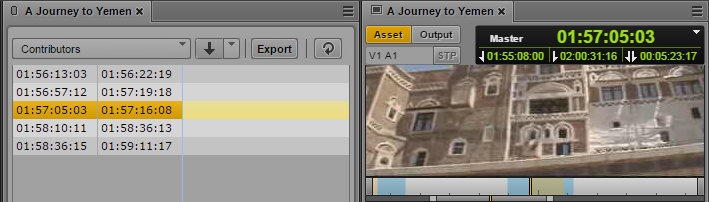
The segment is highlighted in the Logging pane. In the Media pane the position indicator is set to the first frame of the segment.
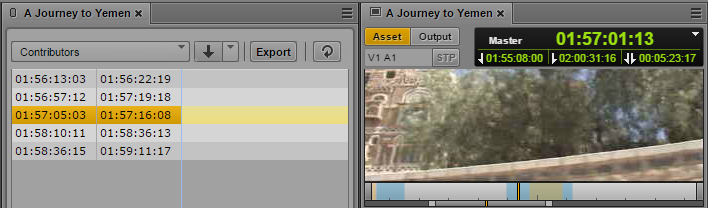
5. To move the segment’s In mark, set the position indicator to the desired position.
Even if another segment is reached in the Media Timeline, the originally selected segment stays selected in the Logging pane.
6. In the Logging pane, do one of the following:

Right-click the segment and select Set In.
Click the Pane Menu and select Set In.
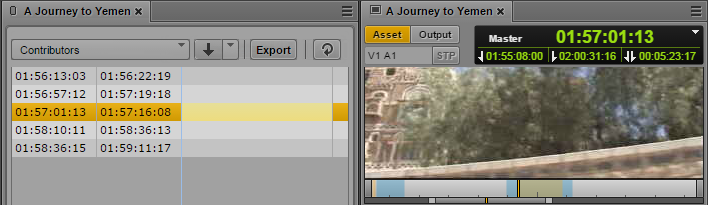
The segment’s In mark is moved to the current position.
7. To move the segment’s Out mark, select the segment in the Logging pane and and set the position indicator to the desired position in the Media pane.
8. In the Logging pane, do one of the following:
Right-click the segment and select Set Out.
Click the Pane Menu and select Set Out.
The segment’s Out mark is moved to the current position.