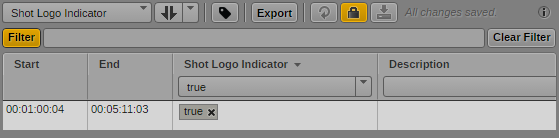
Filtering a Stratum
If a stratum includes a large number of annotated segments, you can use filtering controls to display a subset of the list:
• A general text filter that searches in all properties of the stratum.
• Property-specific filters: Each segment property provides a filter control: a selection list for Boolean properties, a text box for all other property types.
To show only segments in the Logging pane that contain specific keywords, type a search string in the general Filter box or in the property-specific filter box or select the value from the selection list. If you use more than one filter box, all filters are combined with an AND condition.
The filter is saved with the asset. You can apply the filter directly when you open the asset again in the Logging pane.
To filter a stratum:
1. Select the stratum.
2. To apply a general text filter to all segments at the same time, click in the Filter text box and start to type. As you type, the segments are filtered according to the text you type. You can type more than one word.
3. To apply a filter to a specific segment, click in the filter control of the segment property and do one of the following:

For a Boolean property, select “true” or “false” from the filter control.
For any other property type, begin typing text in the filter text box. You can type more than one word. You can include the standard Boolean operators AND and OR.
The Filter button automatically turns orange. As you type, the segments are filtered according to the text you type.
4. (Optional) Repeat step 3 for all segment properties you want to filter.
5. (Optional) To turn filtering off, click the Filter button so that it turns gray. The filter is disabled but saved.
To turn filtering on again, click the Filter button so that it turns orange. The filter is applied.
6. (Optional) To remove filters, do one of the following:
To remove the filter from an individual property, delete the filter text or select “any” for a Boolean property.
To remove all filters at the same time, click the Clear Filter button.