New Features in MediaCentral | UX Version 2.7.0
Editing
Feature | Description |
Setting to define if overwrite state for STP should stay selected or not | The Send to Playback Settings window (opened from the Media Pane menu) includes an option to overwrite a sequence with the same video ID already sent to the playback device. Prior to MediaCentral UX v2.7, if you selected this option, the option was reset to off after an STP operation. Starting with v2.7, the User Settings include a Send to Playback page with an option that lets you preserve the state of the Overwrite setting. • If the check box is selected, the state of the Overwrite setting persists between STP operations. • If the check box is unselected, the state of the Overwrite setting is reset to off after each STP operation (the default setting). |
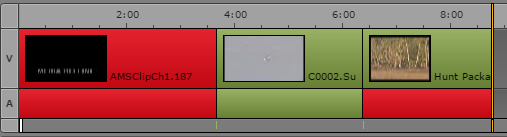
Indication in Sequence timeline that media is offline | Segments whose media is shown as offline in the Media viewer are colored red in the Sequence timeline. Segments can have video and audio offline, only video offline, or only audio offline. This feature is especially useful when you use the Review for Playback feature to review a sequence for STP. If you are working with multi-resolution clips, and the STP target resolution is not available, clips could be online (green) in the sequence but offline (red) after you click the Review for Playback button. For more information, see Reviewing in the STP Target Resolution.  Segments with partially online media are displayed as online (green). |
Snap to a cut in the Sequence Timeline | Starting with MediaCentral UX v2.7, you can use Ctrl+click (Windows) or Command+click (Macintosh) to snap the position indicator to the closest cut of the enabled tracks. Do one of the following: • Press and hold the Ctrl key, click in the timecode bar, and drag the position indicator to within a few pixels of the cut. The position indicator snaps to the cut. • Move the mouse pointer to within a few pixels of the cut, then press Ctrl+click.The position indicator snaps to the cut. In both cases, the position indicator is located on the first frame after the cut. |
Interplay | MAM
Feature | Description |
Creating assets in the Assets pane | You can create new assets in Interplay MAM manually from the Assets pane. This action creates a reference to the asset in the selected folder. The asset you create is a “placeholder” asset: it contains metadata but it does not contain any essence, such as a video or audio file. You can upload the essence file to the new asset in a subsequent procedure. For more information, see Creating Assets. |
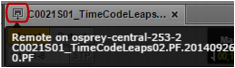
Icon and label to indicate MAM asset with remote media | If you are working in a multi-zone MediaCentral environment, a MediaCentral server can be configured to allow playback of Interplay MAM assets whose essences (media) are stored on a remote location. Starting with MediaCentral UX v2.7, the Sequence pane and the Media pane include visual indicators that you are working with remote media. If you load an asset with remote media, a remote asset icon is displayed on the Media pane’s tab. If you hover the mouse over the tab, the name of the remote MediaCentral UX server (the server that is playing back the remote media) is displayed. The full name of the asset is also displayed. In the following illustration, the name of the remote MediaCentral server is “osprey-central-253-2.” If you add an asset with remote media to a sequence, the name of the remote MediaCentral server is displayed on the clip, along with the clip name. |
Installation and Configuration
Feature | Description |
System Health Check | The Health Check script quickly gathers a wide range of valuable system information through a single command and e-mails the information directly to Avid (if desired). When working with Avid Customer Care, this data is used in the troubleshooting process to expedite solutions. |
Closed Captioning Service | In previous releases, Avid required the service to be installed on all nodes in a MediaCentral cluster. Version 2.7 of the Closed Captioning Service has been updated to require installation on the master and slave nodes only, simplifying the install process. |
Interplay Production Media Indexer | If integrating with Interplay Production v3.1 through v3.4, you must upgrade the Interplay Media Indexer to v3.4.3 For information on upgrading the Media Indexer software, see the Interplay | Production ReadMe and the Interplay | Production Software Installation and Configuration Guide. |
Logging
Feature | Description |
Show values in a grid view | (Interplay MAM) Before version 2.7, the Logging pane showed a separate column for each property of type “text” assigned to the selected stratum, and one “Tags” column for the values of properties that are not from type text, for example, date, timecode, or dictionaries. Starting with MediaCentral UX v2.7, a button lets you toggle between Grid view and Tags view. Tags view combines all tags in a single column labeled “Tags.” The new Grid view displays a separate column for each tag. |
Shared Storage
Feature | Description |
Avid NEXIS | This release includes support for Avid NEXIS, a new software-defined storage system which provides a high-performance distributed file system that contains high-capacity shared media storage for workgroups of connected devices. For more information, see the Avid NEXIS documentation. |
Stories
Feature | Description |
Associate the iNEWS video id with a new, empty sequence | If an iNEWS story contains a video ID, and you create a sequence that is associated with the story (referred to as a script sequence), the video ID is added to the metadata of the sequence. Starting with MediaCentral UX v2.6.1, the video ID is added to the metadata of a saved sequence even if the sequence does not contain any media. This is especially useful if the sequence is later edited in Media Composer. |
Drag a story from a queue to Media Composer to copy the associated sequence | (Windows only) If you are running Media Composer and MediaCentral UX on the same system, you can view or edit a sequence associated with a news story by dragging the story from MediaCentral UX to a Media Composer bin or source monitor. The associated sequence is then available for viewing or editing in Media Composer. Requirements: • A Windows computer running Media Composer v8.5.2 or later, with access to an Interplay Production workgroup. • Access to a server running MediaCentral UX v2.6.1 or later. This MediaCentral server must be associated with the same Interplay Production server that you are logged in to. |
Modifying Story Fields in the Queue Grid View | You can edit some non-text cells in the queue grid view that provide a menu of predefined options (also called Combobox fields because they include both text and menu options). For information on editing Combobox fields, see Modifying Fields in the Queue Grid View. |
MediaCentral | UX Mobile Apps
Feature | Description |
(Android) Autorefresh Queues | Queues marked with the autorefresh attribute in iNEWS now automatically redisplay changes made by other iNEWS users. |
Media | Distribute
Feature | Description |
New Distribution Pane | You can now use the Distribution pane to publish media packages to some of the platforms supported by Media Distribute. For Media Distribute v2.7, the following platforms are supported: • Twitter • Facebook • Flickr • YouTube • Vimeo • Amazon S3 |
MediaCentral Premiere Pro Connector
Feature | Description |
MediaCentral Premiere Pro Connector | Adobe Premiere Pro users can now access the power of the Avid MediaCentral Platform from within the Premiere Pro editor using the MediaCentral Premiere Pro Connector. The MediaCentral Premiere Pro Connector enables a roundtrip workflow with Avid’s asset management systems by connecting an Adobe Premiere Pro editor to Avid Interplay Production and Interplay MAM through MediaCentral UX. For more information, see the MediaCentral Premiere Pro Connector ReadMe. |
MediaCentral UX Desktop
Feature | Description |
MediaCentral Desktop v1.2 | Desktop v1.2 requires the PPAPI version of Adobe Flash Player. This is an update from prior versions of the application which required the NPAPI version. The option to enable or disable MOS plug-ins has moved from the User Settings to the application’s View menu. For more information, see the MediaCentral Platform Services Installation and Configuration Guide. |
System Settings
Feature | Description |
LoggingControls | The Logging Controls setting is used for assigning a custom system name that is used by Media Index. For more information, see the MediaCentral Platform Services Installation and Configuration Guide. |
Technology Preview
Feature | Description |
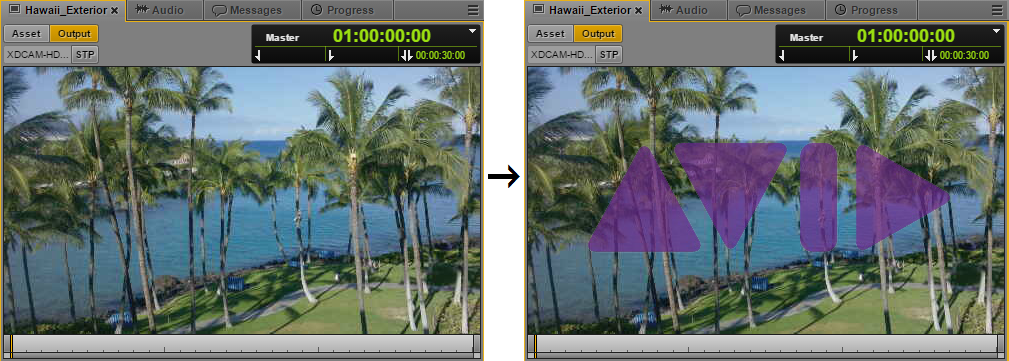
Asset Watermarking | MediaCentral Platform Services v2.7 introduces a Technology Preview of the asset watermarking feature for use with all MediaCentral video assets. For sites that want to add a layer of protection from unauthorized or unlawful distribution of copyrighted media, an image can now be superimposed on top of any asset processed through the MediaCentral player service. The following is an example of the MediaCentral | UX Media pane, before and after the watermarking feature has been enabled: For more information on Asset Watermarking as well as the definition of a Technology Preview, see the MediaCentral Platform Services Installation and Configuration Guide. |
Additional Documentation
Information in this section has been added to the MediaCentral UX documentation.
MediaCentral | UX User’s Guide | “Understanding MediaCentral Delivery”: MediaCentral UX uses the Interplay Delivery service to perform workgroup-to-workgroup transfers of Interplay Production assets. Interplay Delivery does not support delivery of in-process (EWC) clips. |
“Turning On the iNEWS Monitor Server”: There is no indication in MediaCentral UX for when the monitor server is loaded, such as when a show is on air. Therefore, to avoid having a user accidentally turn off a loaded monitor server (by clicking the MON button), Avid recommends using group security (in MAP story for rundowns) to ensure only specific users have permission to invoke the monitor server from the MediaCentral UX interface. For more information on group security, see the Avid iNEWS Setup and Configuration Guide. |
MediaCentral Hardware Guide | Clarified support for co-installs of MediaCentral and Avid iNEWS systems. |
MediaCentral Platform Services Virtual Environment with VMware® Best Practices Guide | Introduced with this release, but supported through MediaCentral Platform Services v2.5, this document provides guidance for creating a MediaCentral Platform Services system as a virtual machine. |