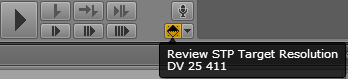
Reviewing in the STP Target Resolution
When you play media in MediaCentral UX in a multi-resolution environment (Interplay Production only), the media server plays the most compressed available media. For a send-to-playback operation, the send-to-playback profile specifies a high-resolution target resolution. You can select an option to play the media in the target resolution.
Reviewing media in the STP target resolution is a way of testing if all media is available for the sequence, checking for black frames, and checking if edits are frame-accurate. It is not a way to check the quality of the resolution. This relink is made only to the specific target resolution and if the resolution is not available the Media Offline display will be shown.
Starting with MediaCentral UX v2.7, offline media is displayed as red in the Sequence Timeline. See
Displaying Media Status in the Timeline.
Use the MultiRez button, in the lower right of the Media pane, to review media in the STP target resolution. There are two different ways the button can be displayed:
• A button with a single function. This is the default button. It is available in Output mode only.
• A multi-function button. This button is enabled by the MediaCentral administrator as a system setting. It is available in both Asset and Output mode.
For more information about the multi-function button, see
Playing Back at the Highest Resolution.
Reviewing in the STP target resolution is a temporary setting and applies only to the currently loaded sequence.
To review a sequence in the STP target resolution (single-function button):
1. In Output mode, click the MultiRez button.
The button turns orange. The top half of the icon is black. A tool tip shows the target resolution.
2. Play the sequence.
To review an asset in the STP target resolution (multi-function button):
1. In Asset mode or Output mode, click the arrow next to the MultiRez button, select STP Target Resolution, then click the MultiRez button.
The button turns orange. The top half of the icon is black. A tool tip shows the target resolution.
2. Play the sequence.
To return to normal playback, click the MultiRez button again.