Sending a Sequence to a Playback Device
You can send a sequence to a playback device if the sequence fulfills the following requirements:
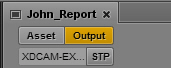
• The media format of the sequence must match the media format specified in the selected send-to-playback profile. The format for the currently selected STP profile is displayed in the Video Format display. If the format of the sequence matches the format of the STP profile, the display is black.
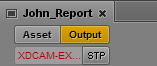
For a mixed-resolution Long GOP sequence, this display is red. However, you can send the sequence to playback so long as all clips in the sequence use the same frame rate. See
Sending a Mixed-Resolution Long GOP Sequence to a Playback Device.
• The sequence must have a video ID. If the sequence does not already have a video ID, you can add one during the STP process.
The sequence does not need to be associated with an iNEWS story. You can send any sequence to playback that fulfills these requirements.
If the media format of the sequence does not match the media format specified in the profile, the Video Format display is red. To send the sequence to playback, select a different profile or replace the media in the sequence. For more information, see
Specifying Send to Playback Settings.
You can preview a sequence before sending it to playback. For more information, see
Reviewing in the STP Target Resolution.
If a sequence includes closed captions, you must repackage it before you can send it to playback. For more information, see
Extracting and Repackaging Closed-Caption Data.
You can send to playback (STP) a sequence that includes an in-progress (edit-while-capture or EWC) clip. However, you cannot STP an in-progress clip. If you load an in-progress clip, the STP button is disabled. See
Sending Master Clips or Subclips to a Playback Device.
To send a sequence to a playback device:
1. Load a sequence into the Media pane.
You can load a sequence into Output mode or Asset mode. To load a sequence into Asset mode from the Assets pane, right-click the sequence and select Open in Asset Mode.
2. Do one of the following:

Click the STP button.
Click the Pane Menu button and select Send to Playback
(profile-name).
If the sequence has unsaved changes, a dialog box is displayed. Click Save to save the sequence and continue the STP operation.
If the sequence does not have a video ID, the Send to Playback Settings dialog box opens. Supply the correct settings and click Send.
If there is no video ID assigned for a script sequence, a blue link is displayed in the Video ID field. Click this link to display and enable the Video ID field within the story form of the corresponding story. Then enter the correct video ID and start the send-to-playback operation again.
If the sequence contains gaps of video black, and your MediaCentral UX administrator has configured the option to detect these, an error message is displayed. For more information, see
Detecting Black Gaps in Video Sent to Playback.
If you try to send to playback and do not have permission, the following message is displayed: “Your user group does not have permission to send to any playback device (STP).” Contact your MediaCentral UX administrator. For more information, see
Limiting Send to Playback to Selected User Groups.
If the sequence includes a video ID, and the media formats match the requirements of the profile, the sequence is sent to the Interplay Transfer service, from which it is sent to the selected playback device. You can continue working while the transfer is taking place.
For information on monitoring the send-to-playback operation, see
The Progress Pane.