The Progress Pane
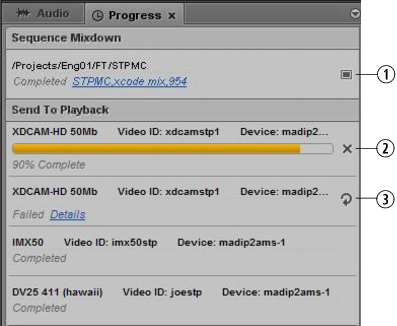
The Progress pane is used to monitor sequence mixdowns and send to playback processes as they happen. If necessary, you can also cancel a process that is underway or restart a job directly from the pane. The following illustration shows several examples of what you might encounter when monitoring processes with the Progress pane.
1 | Monitor button | 3 | Resend button |
2 | Cancel button | | |

Clicking the link for successfully finished Sequence Mixdown jobs opens the folder containing the newly created clip in the Assets pane.
Processes are grouped according to the type of job, such as Sequence Mixdown or Send to Playback. Single job groups can be collapsed to get a better overview by selectively displaying only one section. You can display all job groups again manually or from the Pane menu. For example, select Show Job Groups to open all sections.
In the case a problem occurs, the Details link displays the error message that is reported from the MediaCentral UX system. In case of Sequence Mixdown, this is the same error message displayed for the failed transcode job in the Interplay Production Services and Transfer Status tool. For send to playback (STP) this is the error message that is passed by the MediaCentral Distribution Service. For more information, see
Monitoring and Troubleshooting.
You can set your browser preferences to show desktop notifications for jobs in the Progress pane as browser alerts. See
Showing Desktop Notifications from Panes.
To open the Progress pane:

Select Panes > Progress.
To cancel a process underway:
Click the Cancel button located to the right of the active process.
To retry a failed process:
Click the Resend button located to the right of the process.
To open the new master clip after a mixdown process:
Click the Monitor button located to the right of the process. For more information, see
Transcoding Assets.
To remove a job from the list in the Progress pane:
Right-click the finished process and select Clear Job.
To remove all non-running processes from the list in the Progress pane:
1. Click the Pane Menu button.
2. Select Clear Inactive Jobs.