Limiting Send to Playback to Selected User Groups
MediaCentral UX V2.6 and later includes a feature that allows an administrator to specify which users are allowed to send to playback (STP). You set permission for STP on a group basis in the Send to Playback settings in the System Settings layout.
Before enabling this feature, determine a group or groups to which you want to give permission to send to playback. Note the following:
• A user who is a member of both a group that has permission to STP and a group that does not have permission to STP, that user has permission to STP.
• If a user is a member only of a group that does not have permission to STP and tries to send to playback, the following message is displayed: “Your user group does not have permission to send to any playback device (STP).”
To limit STP to selected user groups:
1. Sign in to MediaCentral UX as an administrator.
2. Select System Settings from the Layout selector.
The System Settings layout opens.
3. In the Settings pane, select Send to Playback.
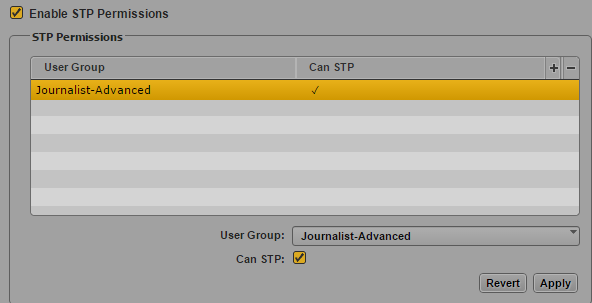
4. In the lower part of the page, select the Enable STP Permissions check box. A message is displayed, warning you that selecting this option prevents user groups that are not listed from using STP. Click Yes to continue.
Controls for adding a group are enabled, as shown in the following illustration.
5. To add a user group, click the plus button.
6. Select a user group from the User Group menu.
7. Select the check box Can STP.
This check box allows you the option of turning access on and off without removing the group from the list.
8. When you are finished, click Apply.
To remove a group, click the minus button and click Apply.