Specifying Send to Playback Settings
When you are finished editing a sequence, you can transfer it to a playback device or playout server for broadcast. This process is called
send to playback, or STP. You can also send sequences created in other Avid applications to a playback device if they are playable in MediaCentral UX. For more information, see
Playback of Simple and Complex Sequences.
When you send to playback, you use a profile that is created by a MediaCentral UX administrator.
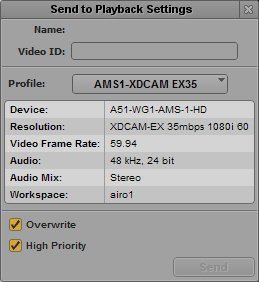
You select a profile and other options in the Send to Playback Settings dialog box.
Starting with MediaCentral UX v2.6, an administrator can specify which users are allowed to send to playback (STP). If you try to send to playback and do not have permission, the following message is displayed: “Your user group does not have permission to send to any playback device (STP).”
Starting with v2.7, the User Settings include a Send to Playback page with an option that lets you preserve the state of the Overwrite setting.For more information, see
User Settings.
To specify send-to-playback settings:
1. Click the Pane Menu button and select Send to Playback Settings.
2. Supply the following information:
Setting | Description |
Name | Automatically supplied when you select a sequence for send to playback. You can copy text from the Name field into the paste buffer. For example, if the Video ID field is empty, you can paste the clip or sequence name into the Video ID field. |
Video ID | Required to send a sequence to playback. • Script sequences: Automatically supplied when you select a script sequence if the video ID is already assigned to the story. The video ID is equivalent to the tape ID in Avid editing systems. If the Settings dialog box opens after you begin a send-to-playback operation, and there is no video ID assigned for a script sequence, a blue link is displayed in the Video ID field. Click this link to display and enable the Video ID field within the story form of the corresponding story. Then enter the correct video ID. • Other sequences: If there is no video ID assigned for a sequence not associated with a story, type the video ID in the Video ID field.  Valid characters for the Video ID field are alphanumeric characters, hyphen, and underscore. If invalid characters are used in the clip or sequence name, they are removed before the text is pasted into the Video ID field. You cannot type invalid characters in the Video ID field. |
Profile | Select the profile that you want to use for the send-to-playback operation. Profiles are created by a MediaCentral UX administrator. Settings for the selected profile are displayed in the section below the profile name. |
Overwrite | (Optional) Select Overwrite if you want to automatically overwrite any sequence with the same video ID already sent to the playback device. If you try to send a sequence with the same video ID as one already sent to the playback device, you receive an error message. Select the Overwrite option only if you are sure you want to overwrite any sequences with the same video ID. You can select a User Setting so that the Overwrite selection persists between operations. See User Settings. |
High Priority | (Optional) Select High Priority if you want the sequence to be transferred as quickly as possible by giving the highest priority to Production Services jobs required for STP. |
If the Send to Playback Settings dialog opens after you send a sequence to playback, either the resolution of the sequence does not match the selected profile or the video ID is missing, or both. If you supply the correct settings, you can click the Send button to start the send to playback process.
3. Click the Close button at the top right of the dialog box or click in another area of the application.
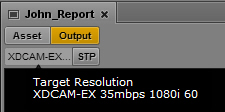
If a sequence is loaded in Output mode, the resolution for the selected profile is displayed in the Video Format display. Move the mouse pointer over the display, and the complete resolution is shown in an overlay.
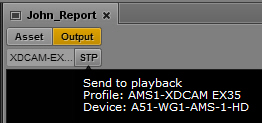
Move the mouse pointer over the STP button, and a summary of the selected profile is shown in an overlay.