Sending Master Clips or Subclips to a Playback Device
If you load a clip or a subclip in Asset mode, you can send it to a playback device (STP). This feature lets you send to playback without cutting a clip or subclip into a sequence.
You can send a master clip or subclip to a playback device if the clip fulfills the following requirements:
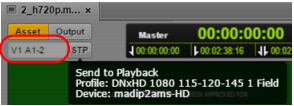
• The media format of the clip must match the media format specified in the selected send-to-playback profile. The format for the currently selected STP profile is displayed if you hover the mouse pointer over the STP button. If the format of the clip matches the format of the STP profile, the track display is black.
• The clip must have a video ID. If the clip does not already have a video ID, you can add one during the STP process.

You cannot send a group clip, audio-only clip, or in-progress (EWC) to playback. If you load an in-progress clip, the STP button is disabled.
If the media format of the clip does not match the media format specified in the profile, the track display is red. To send the clip to playback, select a different profile. For more information, see
Specifying Send to Playback Settings.
You can preview a clip before sending it to playback. For more information, see
Reviewing in the STP Target Resolution.
To send a master clip or subclip to a playback device:
1. Load a clip into the Media pane.
The clip loads in Asset Mode.
2. Do one of the following:

Click the STP button.
Click the Pane Menu button and select Send to Playback.
If the clip does not have a video ID, the Send to Playback Settings dialog box opens. Supply the correct settings and click Send.
If the clip includes a video ID, and the media formats match the requirements of the profile, the clip is sent to the Interplay Transfer service, from which it is sent to the selected playback device. You can continue working while the transfer is taking place.
For information on monitoring the send-to-playback operation, see
The Progress Pane.