Understanding Segmentation Principles
In Interplay MAM an entire video clip is considered one segment. A segment can be any size, from one frame to all frames of a video. You can create segments in all available strata.
For all strata types, Interplay MAM can be customized to allow or exclude gaps between segments. The default setting excludes gaps between segments. Segments can be created or changed in a stratum, but not deleted. If gaps are not allowed, segmentation is always frame-accurate, meaning the Out mark and the In mark of adjacent segments are always adjacent frames of the video clip. When the default setting is changed to allow gaps between segments, it is up to you to decide if you want gaps between segments or not.
Segmentation - No Gaps Allowed
You can create, resize, or merge segments when gaps are not allowed. Segments cannot be deleted from a stratum.
• Creating segments: As gaps between segments are not allowed, “Split” is the only method you can use to create segments. To create segments, start by splitting the entire stratum into two segments. Then, split one of the two segments into another two, and so on. See
Creating Segments (Gaps Not Allowed).
• Merging segments: You can merge adjacent segments by applying the “Merge” function, which deletes the segment border (Out mark/In mark) between the segments. See
Merging Segments.
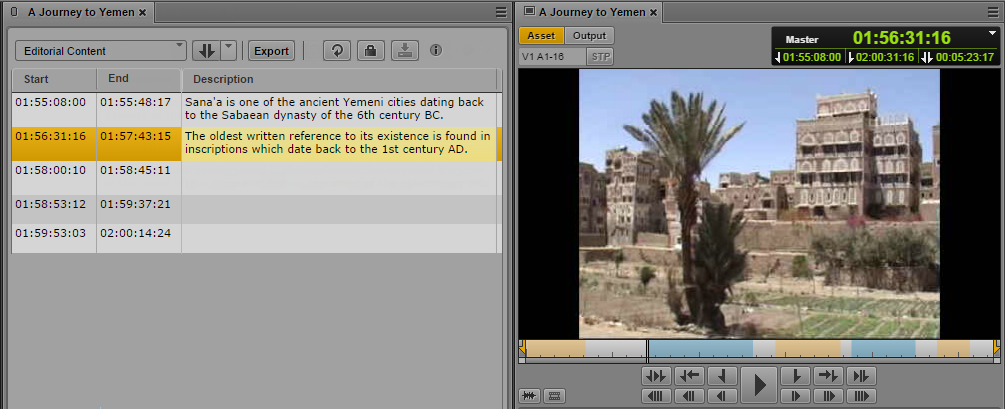
The No Gaps Allowed mode is reflected in the UI by the following elements: The Logging pane does not show a New Segment control and the timeline in the Media pane only shows alternating orange and blue segments.
Segmentation - Gaps Allowed
Interplay MAM by default does not allow gaps between segments. The Out mark and In mark of adjacent segments are always adjacent frames.
When the setting is changed to allow gaps between segments, you can still segment in a stratum as if gaps were not allowed, but the major purpose is to be able to create segments with gaps between them.
When you segment in a stratum you can have a gap before the first segment, after the last segment, or between any two segments after the first or before the last segment, as illustrated:
Instead of starting or ending with a gap, you can also start or end with a segment.
The Logging pane provides the following segmentation functions when gaps are allowed. You can apply them to simple strata and structured strata:
• Resizing segments: You can use the “Set In” function to move the start of a segment to the left or right; the Out mark of the previous segment is not affected. You can use the “Set Out” function to move the end of a segment to the left or right; the In mark of the following segment is not affected. See
Resizing Segments (Gaps Allowed Mode).
• Splitting segments: You can use the “Split” function to create two adjacent segments. See
Splitting Segments.
• Merging segments: You can use the “Merge” function to concatenate a selected segment with its neighboring segment to the right. A gap between the segments is integrated into the merged segment. See
Merging Segments.
• Deleting segments: Use “Delete” to create a gap between adjacent segments or resize the gaps to the right, or left, or both sides of the selected segment. See
Deleting Segments.
The Gaps Allowed mode is reflected in the UI by the following elements: The Logging pane shows a New Segment control and the timeline in the Media pane shows light gray sections between the alternating orange and blue segments.
Overlapping Segmentation
Independently from Gaps Allowed and Gaps Not Allowed mode, each stratum can be configured individually to allow “overlapping segments” — segments that share one or more frames in a stratum. When such a stratum is selected in the Logging pane, gaps are automatically allowed. This means that the “overlapping segments” setting overwrites the Gaps Not Allowed configuration mode. You can create any kind of segment sequences in a stratum that allows overlapping segments: Segments can be adjacent, have gaps between them, or they can overlap. These different sequences can be combined across any section of the video, or across the entire video.
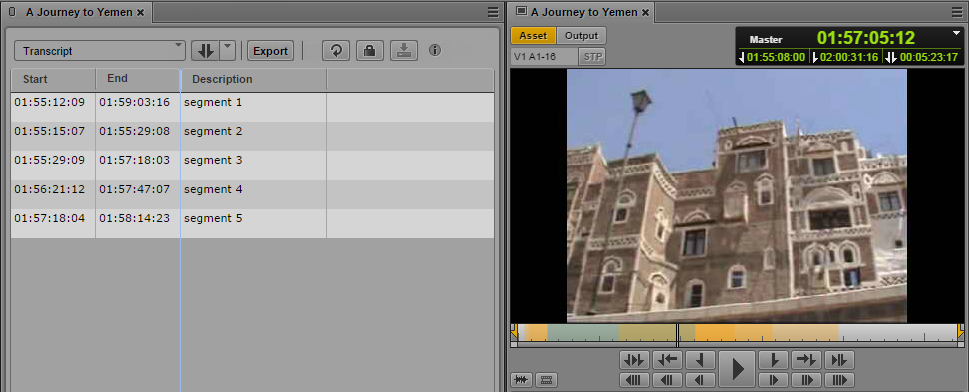
The diagram represents a section with five overlapping segments that share at least one frame with each other. Segments 2 and 3 are the only segments that do not overlap with each other. If considered separately, they are not adjacent, because there is a gap between them.
The following illustration shows five overlapping segments on the Logging pane and the Media Timeline. The timeline in the Media pane shows alternating orange and blue sections that represent the individual segments of the selected stratum. Overlapping segments are represented by a darker shade of the same color.
Segmenting in Strata Groups
In the Logging pane, you segment in a strata group the same way you segment in a single stratum. If strata are pooled in a group, the Strata selection list lets you select the strata group but not the individual strata of the group. Example: You have a strata group Stratagroup_Demo containing two strata SG_Subtitle and SG_Description. Then the Strata selection list will only offer Stratagroup_Demo for selection. The segmentation is always passed on to all strata of the group.
In the Media pane, you can only select an individual stratum to be displayed on the Media Timeline. In the example, only the strata SG_Subtitle and SG_Description can be selected but not Stratagroup_Demo. It is sufficient to display only one stratum since the segmentation across the strata within that group is synchronized.