Creating Segments (Gaps Not Allowed)
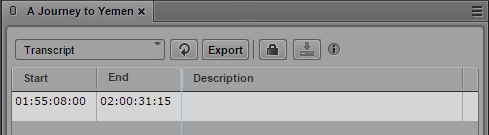
Since only splitting segments from the very beginning is possible in No Gaps Allowed mode, a virtual segment that spans the entire stratum is created when you start editing a stratum for the first time.
To create segments:
1. Load an asset in the Logging pane and Media pane.
2. In the Logging pane, select the stratum in which you want to segment.
3. In the Media pane, select the same stratum to be displayed on the Media Timeline.
4. Use the transport controls of the Media pane to move through the video and pause at the desired position.
5. To create segments by splitting the virtual segment, do one of the following in the Logging pane:

Click the Pane menu and select Split at current playhead position.
Right-click and select Split at current playhead position from the context menu.
With the focus in the Logging pane, press Ctrl+E.
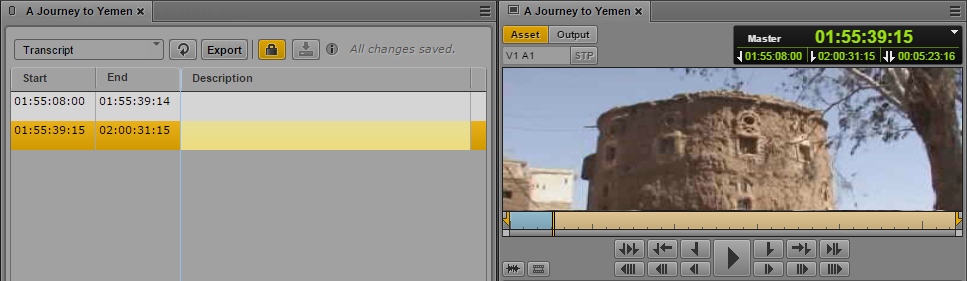
The stratum is locked. The virtual segment is split into two segments.The current frame is used as In mark of the second segment, the Out mark of the first segment is set to one frame before. The second segment is selected in the Segment List.

Currently you must reload the asset to make a new segment visible on the Media Timeline.
7. Repeat steps 4 and 5 to create new segments by applying the split function.