Conducting a Search
You can search for assets by using the Search bar or the Search pane, using either the indexed search or the federated search. You can also add filter criteria to your search to narrow your search results.

Indexed search requires Media Index to be installed and configured in your MediaCentral Platform environment.
To conduct an indexed search:
1. Click the Pane Menu button and select Indexed Search.
2. (Option) Click the Pane Menu button and select a language for your search.
Default languages used for searching indexes are set during Media Index configuration.
3. Type a key word or words in the Search text field.
You can search for text of one or more characters. Providing more characters results in greater precision in the search results.
A drop-down list appears with search suggestions built from the index appears when you type three or more characters.
To remove the added criteria, click the Minus button at the right of the pane above the Search button.
Media Index maps Interplay Production properties to Media Index criterion fields — for example, you search for text in the Comments property by using the Description criterion. For more information, see
Media | Index and Indexed Search.
5. If you select criteria that allow Boolean operators, click the search field for a criterion and select the appropriate operator:
Boolean fields only allow for selection of one of two states: true or false. For most systems, “false” is not the same as “not set.”
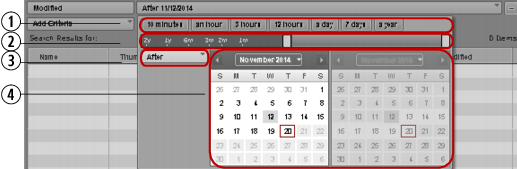
6. If you select criteria that require a date or span of dates, click the date field.
The date picker window opens.
1 | Shortcut date buttons | 3 | Scope menu |
2 | Date slider | 4 | Date picker |
Date criteria do not support the is set/not set search prefixes.
7. If you want to define a date range, click the Scope menu and select one of the following to define your search:
- Between
- After
- Before
- Not restricted
8. To specify a date range, do the following:

Click one of the shortcut date buttons to set your search for one of the common time spans. The shortcut date buttons indicate the time from the present.
Use the date slider to specify a time span for your search. The date slider indicates the time from the present.
Use the calendar to select the appropriate dates for your search.
The date picker window uses your system time as the present and measures time spans from that reference.
You can select a date and time in the future. This can be useful when setting up search presets.
The date slider adjusts to match the date options you select, and the date field displays a text summary of your date search criteria.
9. If you want to modify the date or time values to specify an exact date or time, do the following:
a. Click a date or time value displayed in the criterion text box.
If you click the date value, the date — day, month, or year — is selected.
Date components and formats are determined by the locale used by your system.
If you click the time value, the time — hours, minutes, or seconds — is selected.
b. Type a new value.
When you type a legal value, the next value is automatically selected. You can navigate between the values for days, month, years or for hours, minutes, and seconds by using the arrow keys, or by pressing the Tab key or Shift+Tab to move to the following or preceding value. You can also use the up arrow and the down arrow to raise or lower values incrementally.
10. Click the Search button.
The system clears any existing search results from the results list and returns assets that match the criteria in the search results list. If the asset exists in multiple locations in the MediaCentral databases, the search might list all instances.
11. To view the results found in a time-based metadata text field — for example, in marker text — click the Display Type menu and select Card, and then expand the Time-Based Metadata section.
The results list displays a summary of the text found to match the search query and provides a timecode link to the location in the asset where the metadata occurs.
To conduct a federated search:
1. Click the Pane Menu button and select Federated Search.
2. Click the Assets menu and select the type of asset:
- All Assets: Select All Assets to search iNEWS, Interplay MAM, and Interplay Production databases for stories and media that match the search criteria.
- Stories: Select Stories to search iNEWS databases for stories that match the search criteria.
- Media: Select Media to search the Interplay Production databases for media assets that match the search criteria.
- MAM Assets: Select MAM Assets to search the Interplay MAM database for media assets that match the search criteria.
If you select All Assets and then add criteria specific to Interplay Production (like Video Resolution, Category or Type), the search ignores iNEWS databases and returns results only for the Interplay Production database. Similarly, if you select All Assets and then add criteria specific to Interplay MAM (like Asset Types or Rights), the search ignores iNEWS and Interplay Production databases and returns results only for the Interplay MAM database.
3. Type a key word or words in the Search text field.
You can search for text of one or more characters. The more characters you provide, the faster the search will provide results.
When you enter two or more words, separated by spaces, the system conducts a search for anything that matches all words entered.
- For an Interplay Production search, typing White House returns items containing that exact phrase.
- For an Interplay MAM search, typing White House returns items containing “White” and “House” in a single metadata field, or “White” in one metadata field and “House” in a different metadata field, but the results do not feature items with only “White” or “House.”
- For an iNEWS search, typing White House returns any story with both “White” and “House” in them, but the results do not feature items with only “White” or “House.” Typing “White House” returns stories with that exact phrase.
Additionally, the search for a word, for example, “plane”, results in items that contain “plane” as well as items that contain “airplane.”
Search terms are not case-sensitive. However, Avid recommends you use only alpha-numeric characters.
Use of punctuation or symbols might return inconsistent results. For example, an iNEWS system treats an asterisk or question mark as a wild card character. When you search stories in the iNEWS database by typing the letters
Sm*th, the search locates stories with words such as “Smith,” “Smyth,” and “smooth.” However, Interplay Production does not support wild card characters, so the same search for
Sm*th only returns media assets containing those exact characters (“Sm*th”). For information about wild card characters and operators supported for searches in Interplay MAM databases, see
Wild Card Characters and Operators Supported for Federated Searches in Interplay | MAM Databases.
In the Search pane, you do not need to include text in your search criteria for Modified Date, Video Resolution, Category, Type, Asset Types, or Rights.
4. (Search pane only) Click the Add Criteria button to add one or more additional search criteria. For information about the criteria, see
Advanced Search Filters.
To remove the added criteria, click the Minus button at the right of the pane above the Search button.
5. If you select criteria that require a date or span of dates, click the date field.
The date picker window opens.
1 | Shortcut date buttons | 3 | Scope menu |
2 | Date slider | 4 | Date picker |
6. If you want to define a date range, click the Scope menu and select one of the following to define your search:
- Between
- After
- Before
- Not restricted
7. To specify a date range, do the following:
Click one of the shortcut date buttons to set your search for one of the common time spans. The shortcut date buttons indicate the time from the present.
Use the date slider to specify a time span for your search. The date slider indicates the time from the present.
Use the calendar to select the appropriate dates for your search.
The date picker window uses your system time as the present and measures time spans from that reference.
The date slider adjusts to match the date options you select, and the date field displays a text summary of your date search criteria.
8. If you want to modify the time values to specify an exact time in hours, minutes, and seconds, do the following:
a. Click a time value displayed in the criterion text box.
The time value — hours, minutes, or seconds — is selected.
b. Type a new value.
When you type a legal value, the next value is automatically selected. You can also navigate between the values for hours, minutes, and seconds by using the arrow keys, or by pressing the Tab key or Shift+Tab to move to the following or preceding value.
9. Click the Search button.
The system returns assets that match the criteria in the search results list. If the asset exists in multiple locations of Interplay Production, the search might list all instances as determined by an Interplay Production setting.
The Interplay Production settings include two settings that can help improve search performance: “Show only one representation for each asset found” and “Select a time range for your search.” The Advanced Search criterion Modified Date overrides the Interplay Production time range setting. For more information, see
User Settings.
Related Topics