Advanced Search Filters
In addition to the basic criteria described in
Conducting a Search, you can select from the criteria filters listed in the following tables. The filters available depend on whether you select the indexed search or the federated search.
Advanced Search with Media Index
Indexed search uses metadata categories set up by your MediaCentral administrator when Media Index is configured. Some search filters apply to all assets in the MediaCentral platform, and some filters apply only to certain databases. The criteria you select filter the results by removing any assets that do not match the criteria you specify. Your MediaCentral administrator can configure custom filters for Media Index, which then display in the list of search filters for indexed searches.

Indexed search requires Media Index to be installed and configured in your MediaCentral Platform environment.
Although the filters used by Media Index vary depending on your configuration, the following table lists some typical filters used for an indexed search.
Search Criterion | Description |
ID | Searches for the unique ID of the media asset. |
System | Searches a specific Interplay Production, MAM, or iNEWS database, depending on your configuration. |
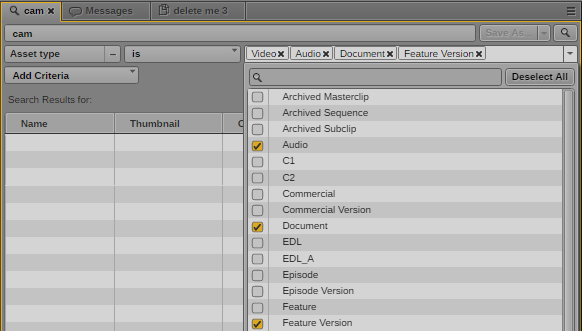
Asset type | Searches for an asset type selected from the Asset type menu — for example, “video” or “master clip.” Interplay Production and iNEWS assets provide a fixed list of asset types, but your Interplay MAM administrator can configure custom asset types to be used in searching MAM assets. Your search can include multiple asset types. |
Creator | Searches for the login name of the user who created this item. |
Modifier | Searches for the login name of the user who last modified this item. |
Name | Searches for a specified value in the name of the asset. |
Created | Searches for assets that have been created in the time range you specify. You can use the shortcut date buttons, the date slider, or the date picker to modify any range for your search, Move the date slider all the way to the left or select Not Restricted from the scope menu if you want to specify an unlimited time period. |
Modified | Searches for assets that have been modified in the time range you specify. You can use the shortcut date buttons, the date slider, or the date picker to modify any range for your search, Move the date slider all the way to the left or select Not Restricted from the scope menu if you want to specify an unlimited time period. |
Description | Searches the text entered in the description or comments field of media assets. |
Tags | Searches any tags added as metadata for media assets. |
Start | Searches for the starting timecode. |
Duration | Searches for the duration of media assets, measured as a timecode value. |
End | Searches for the ending timecode. |
[system] | Searches a specified MediaCentral server. If you select a server, all other server names are inactive in the search filters list. |
You can use the following features with the advanced search filters in an indexed search:
• Selecting criteria: You can filter the results by one or more specific criteria. If you select a criterion that is specific to a system or system type, then all other systems and system types appear disabled in the dialog box because the system-specific filter you select excludes them. For example, if you select a criterion that only exists on the Interplay Production A system, you no longer get results from the Interplay Production B system, which appears disabled in the dialog box. This provides a visual cue to avoid selecting criteria combinations that would not return any results.
If you want to limit the search to a specific system, use the System criterion and select the system that you want to search. For example, if you select an Interplay Production system, an iNEWS system listed in the System criterion filter would be disabled if the Interplay Production system included criteria specific to that system and not found on the iNEWS system criteria.
• Multiple values: You can select multiple values for some options — for example, you can select multiple asset types using the menu in the value field for the Asset type criterion.
• Removing a value: Click the x on the value.
Advanced Search with the Federated Search Option
You do not need to include text in your search criteria for Modified Date, Reg. Date & Time, Video Resolution, Category, Type, Asset Types, or Rights.
Using advanced search filters in the Search pane results in a faster and more precise search.
Search Criterion | Description |
Folder | (Interplay Production, iNEWS only) Searches only the selected folders and their subfolders. Click Browse to navigate to and select a folder. To select multiple locations for your search, hold the Control key (Windows) or Command key (Macintosh) down while clicking the locations in which you want to conduct your search. If your local iNEWS system is part of an iNEWS community, you can select a folder in any available iNEWS server. When searching an iNEWS database, you can simultaneously search multiple indexed queues. However, you can only choose one non-indexed queue path at a time and you cannot combine indexed and non-indexed queues. If you make an invalid selection, an error message is displayed. |
Modified Date | (Interplay Production, Interplay MAM, iNEWS) Searches for assets that have been modified in the time range you specify. The Modified Date slider uses 14 days as a default date range, which you can modify to any range for your search. Move the slider all the way to the left if you want to specify an unlimited time period. You can also specify a date range for search in the Interplay Production user settings. This setting determines the date range used by searches when you use the Search bar or when you do not select Modified Date from the Add Criteria menu. When you use the slider, this date range overrides the user setting. For more information, see User Settings. |
Reg. Date & Time | (Interplay MAM only) Searches the Interplay MAM database for assets that have been created in the time range you specify. The Registration Date & Time slider uses 14 days as a default date range, which you can modify to any range for your search. Move the slider all the way to the left if you want to specify an unlimited time period. The Reg. Date & Time option is only shown if the corresponding property is marked as searchable in the Interplay MAM configuration. |
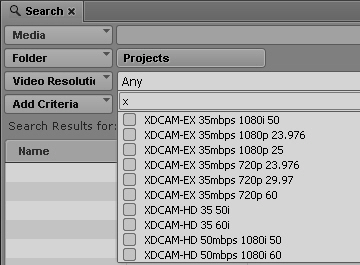
Video Resolution | (Interplay Production only) Searches the Interplay Production database for assets associated with media in a selected video resolution. Click the field and a list appears. Select one or more resolutions from the list. |
Category | (Interplay Production only) Searches the Interplay Production database for assets in a selected category. A category is an Interplay Production custom grouping to which users can assign database assets. Click the field and a list appears. Select one or more categories from the list. |
Type | (Interplay Production only) Searches the Interplay Production database for assets of a particular object type. Click the field and a list appears. Select one or more objects from the list. |
Asset Types | (Interplay MAM only) Searches the Interplay MAM database for assets of a particular asset or basic sequence type. In Interplay MAM asset types are referred to as “object classes” and “EDL classes”. Click the field and a list appears. It shows all object and EDL classes that are configured in the connected Interplay MAM systems. Select one or more asset types from the list. |
Rights | (Interplay MAM only) Searches the Interplay MAM database for assets that have a particular usage right assigned. Click the field and a list appears. It shows all usage rights that are configured in the InterplayMAM legal list MA_Rights_Indicator. Select one or more rights from the list. |
You can use the following features with the advanced search filters:
• Auto-completion: You can begin to type a value in a field, and as you type, the list of values is filtered to match the characters that you type. For example, type X to display resolutions that begin with X, such as XDCAM-EX and XDCAM-HD.
• Keyboard shortcuts: Press Up Arrow or Down Arrow to step through the list of values, press the space bar to select a value to add to the search field, and press Esc to close the list.
• Multiple values: You can select multiple values from the list of options.
• Removing a value: Click the x on the value.
Related Topics