The Search Pane
The Search pane provides advanced search criteria for federated and indexed search that let you conduct a more precise and faster search. You can open a Search pane directly, or you can open a Search pane by dragging the Search bar into the MediaCentral UX window. You can open more than one Search pane.
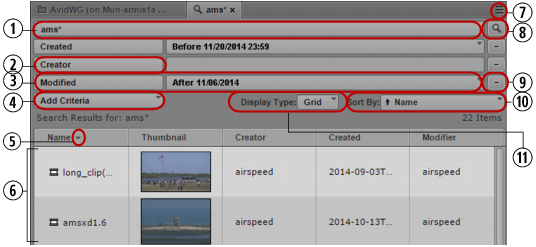
The following illustration identifies the elements in the Search pane used for an indexed search.
1 | Search text field | 6 | Search results |
2 | Advanced Criteria (Creator selected) | 7 | Pane Menu button |
3 | Advanced Criteria (Modified selected) | 8 | Search button |
4 | Add Criteria button | 9 | Minus button to remove search criteria |
5 | Sort arrow | 10 | Sort By menu |
| | 11 | Display Type menu |
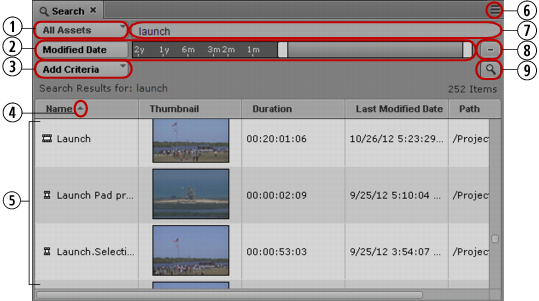
The following illustration identifies the elements in the Search pane used for a federated search.
1 | Assets menu | 6 | Pane Menu button |
2 | Advanced Criteria (Modified Date selected) | 7 | Search text field |
3 | Add Criteria button | 8 | Minus button to remove search criteria |
4 | Sort arrow | 9 | Search button |
5 | Search results | | |
Starting with MediaCentral UX v2.7.2, an administrator can add a default message to the Search text field to provide users with suggestions or specific directions when initiating a search. The message appears in the search field as light gray text. For more information, see “Enabling Custom Text in the Search Field” in the Avid MediaCentral Platform Services Installation and Configuration Guide.
To open a Search pane:

Select Panes > Search.
This opens a blank Search pane in which you can conduct your search. If you have saved searches in the Launch pane, the last saved search opens in the Search pane. If a public search has been set as the default search, the Search pane opens with the default criteria displayed. For more information on setting the default search, see
Saving Searches.
If you already conducted a search in the Search bar and want to display the results in a pane, do one of the following:
- Click the Detach Search icon and drag the bar into any area in the MediaCentral UX window
- Click the Pane Menu button and select Detach Search.
For more information, see
The Search Bar.