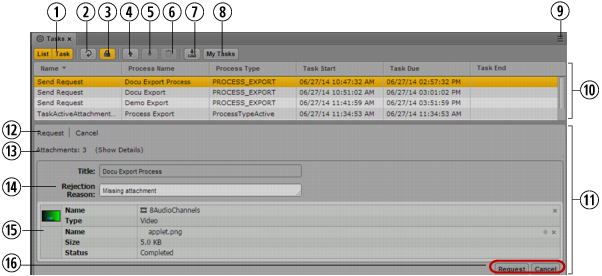
Display or Control | Description | |
1 | List and Task button  | Toggles display of the Task List and Task Details on or off. When toggled on the button is colored orange.  You can have both the List and Task buttons simultaneously toggled on but not toggled off. When only one is on and you click that button, the system automatically toggles that display off and the other display on. You can have both the List and Task buttons simultaneously toggled on but not toggled off. When only one is on and you click that button, the system automatically toggles that display off and the other display on. |
2 | Refresh button | Refreshes the display of active tasks in the Task List. |
3 | Lock Indicator icon | Indicates if the selected task is currently locked for editing. |
 | The task is free for editing. | |
 | You are currently editing the task and it is therefore locked for other users. As soon as you start editing a task it is locked and the Lock Indicator icon is colored orange. | |
 | The task cannot be edited because it is already locked — for example, because another user is already editing the task. In this case you see a message when you hover the mouse pointer over the Lock Indicator icon. The lock is released after you successfully applied an action or delegated the task, when you select another task, or close the Tasks pane. | |
4 |  | Uploads files as attachments to the task. See Uploading Files as Attachments. |
5 |  | Downloads the selected file attachments. See Downloading File Attachments. |
6 |  | Deletes the selected attachments from the task. See Deleting Attachments. |
7 |  | Saves the task data without leaving the edit field. See Displaying and Editing User Task Data. |
8 | My Tasks button | Toggles the My Tasks filter on or off. • When toggled on, the button is colored orange, and the Tasks List shows only the tasks that are assigned to you or the group you are member of. • When toggled off, the Tasks List shows all tasks that you are allowed to edit. |
9 | Pane Menu button | The Pane menu for the Tasks pane contains the following options: • Add or Remove Filters. Allows you to apply a time-based or task type-based filter to the Task List. See Filtering Displayed User Tasks. • Add or Remove Columns. Shows or hides columns in the Task List. • Delegate To. Allows you to delegate a selected task to another user or group. See Delegating User Tasks. • Create Process. Creates a process without attachments in the MAM system. If several MAM system are connected to MediaCentral UX, for each MAM system a separate entry is shown in the Create Process menu item. See Understanding Processes, Tasks, and Actions and Creating Processes. • Upload File. Uploads files as attachments to the task. See Uploading Files as Attachments. • Download File. Downloads the selected file attachments. See Downloading File Attachments. • Delete Attachment. Deletes the selected attachments from the task. See Deleting Attachments. • Help. Displays a Help topic describing controls in the Tasks pane. From this topic you can access the entire MediaCentral UX Help system. |
10 | Task List | Displays active and finished tasks in an overview table, depending on the filter applied to the pane. The Task List has the following columns: • Name: Displays the name of the task. • Task Status: Displays the status of the task. • Task Start: Displays the date and time when the task was started. • Task Due: Displays the planned end date and time of the task (only for active tasks). • Task End: Displays the date and time when the task was finished. • Assignee: Displays the name of the user to which the task is assigned. • Assigned Group: Displays the name of the group to which the task is assigned. • Next User: Displays the name of the user which is set as assignee of the next upcoming task. • Next Group: Displays the name of the group which is set as assigned group of the next upcoming task. • System Name: Displays the name of the MAM system on which the process was created. • Process Name: Displays the name of the process the task belongs to. • Process Type: Displays the type of process the task belongs to. • Process Status: Displays the status of the process the task belongs to. • Process Creation: Displays the date and time when the process was created. • Process Modification: Displays the date and time when the process was modified. • Process Last Modified By: Displays the name of the service or user who modified the process for the last time. • Process Created By: Displays the name of the service or user who created the process. You can configure which columns are displayed by using the Tasks pane menu’s Add Or Remove Columns feature. |
11 | Task Details | Displays details of the task selected in the Task List. Depending on the task type, the Task Details can be split into the Task Information and Task Attachments areas. If you select several tasks in the Task List, the Task Details area does not show information or is cleared. |
12 | Breadcrumbs | Show the names of the current and preceding tasks of the process to give context information. The current task is the last (right-most) in the list. Breadcrumbs are shown for active and completed tasks. |
13 | Attachment count | Shows the number of attached assets. If the number of attachments does not comply with the allowed limits, the Attachments count is shown in red. The Show Details links opens a window that provides details, including the reason why the limit is exceeded. See Adding and Editing User Task Attachments. |
14 | Task Information | Displays the metadata assigned to the task. See Displaying and Editing User Task Data. |
15 | Task Attachments | Displays the attachments of the task as asset cards. For each attached asset, the following are shown: • A header frame or clip icon (MAM assets only) • The asset name and type • A remove button (optional) For each attached file, the following are shown: • The file name, size, and status • A download button (optional) • A remove button (optional) Provides controls to delete attachments from and add new attachments to an active task; allows you to open attachments of active and completed tasks. See Adding and Editing User Task Attachments, Uploading Files as Attachments, Downloading File Attachments, and Deleting Attachments. |
16 | Action buttons | Trigger an action on the task. Which actions are available is determined by the task type. See Applying Actions to User Tasks. |