Understanding Processes, Tasks, and Actions
Processes allow flexible user activities and automated workflows to be used in Interplay MAM.
Processes, Tasks, and Actions
A process is a defined set of automated workflows and manual activities to achieve a specific goal; it defines the states, tasks, and the control flow that are used to achieve the goal. For example, you are finished creating a basic sequence, and want to send it to a reviewer to get approval before the sequence is transferred to a editing device. You can create a process to achieve this goal. Processes are modeled to mirror specific business workflows of customers with specific user interactions.
Interplay MAM processes contain tasks, which are elementary steps within a process that are carried out either automatically (based on workflow scripts) or by user actions. A task that is performed by a manual user action is called a user task.
Actions are items that you select to create a process.
MAM Systems for Orchestration
As an Interplay MAM user that is assigned an Advance license, you have full access to all connected Interplay MAM systems. If you are assigned a Base MAM license, you have full access to one Interplay MAM system but you can also use all other connected Interplay MAM system as “orchestration-only” systems: You can create and monitor processes on these systems. Process creation and monitoring and user task editing are considered orchestration features.
Starting with MediaCentral UX v2.8, users that are assigned a Base non-MAM license (Interplay Production, iNEWS) can also have orchestration-only access to Interplay MAM systems with the following limitations:
• Interplay MAM systems are not shown in the Launch pane.
• Users cannot access MAM folders in the Assets pane, search for MAM assets, or open MAM assets in other MediaCentral UX panes.
Creating Processes
Your ability to create and initiate processes depends on Interplay MAM user privileges and rules. For example, the credentials you use to sign in to the Interplay MAM database must allow creation of processes. Beyond that, the configuration of the process in Interplay MAM determines which action can be applied and the number and type of assets that can be attached to a process (for example MAM basic sequence, MAM video or audio, mixed attachments, or Interplay Production assets).
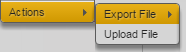
Panes that support the creation of processes provide an Actions menu item (Media pane, Assets pane, Search pane, File Info pane) or Create Process menu item (Tasks pane) to let you select the MAM system running the process and the configured process types.
• If there is one MAM system connected to MediaCentral UX that allows creating processes, the process types are listed as submenu entries in the Actions or Create Process menu item.
• If there are several MAM systems connected to MediaCentral UX that allow creating processes, a submenu entry with the system name is shown for each system. Within the individual system entries the process types are listed as submenu entries.
If only one of the connected systems allows creating processes, one submenu entry with the system name is shown. Within the system entry the process types are listed as submenu entries.
• If a process type provides options (for example, different targets or file types for an export process), the process options are listed as submenu entries in the process type menu item.
• If no MAM system supports process creation or no process type is applicable, the menu item is disabled; if an issue occurs while the process types are loaded, this is indicated by an (Error) or (Timeout) suffix in the disabled menu item.
Starting with Interplay MAM v5.9 / MediaCentral UX v2.10, the order in which process types are listed as submenu entries in the Actions menu can be configured by an Interplay MAM administrator. If sorting of the process types is not configured in Interplay MAM, the process types appear in an unsorted order in the Actions menu.
For more information on how to create processes, see
Creating Processes.
Assets and Files as Attachments
Depending on the process configuration, you can attach assets or files or both to processes and user tasks. Note the following differences between asset and file attachments:
• Assets: Assets are registered, saved, and searchable in the Interplay MAM database. You can attach assets during process creation or in the context of a user task.
- During process creation you can see the attached assets but cannot add assets or delete attached assets in the process creation dialog box.
In the process creation dialog box and the Task pane’s Task Attachment area, for each attached asset, a header frame or clip icon (MAM assets only), the file name, and status are shown. A Delete button might also be shown (Task pane only).
In the process creation dialog box and the Task pane’s Task Attachment area, for each attached file, the file name, size, and status are shown. A Delete button and (only in the Tasks pane) a Download button might be shown.