Display or Control | Description | |
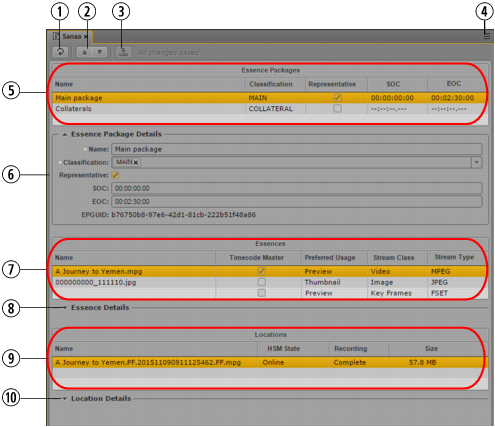
1 | Refresh button | Refreshes the current view in the pane. |
2 | Expand All and Collapse All buttons | The Detail areas of the File Info pane are collapsed when you open the pane. • Expand All button expands all Detail areas (Essence Package Details, Essence Details, and Location Details) and shows all detail information in the pane. • Collapse All button hides all detail information from the pane and shows only the information in the Overview areas. |
3 | Save button | Saves the changes you made to the properties of the essence in the Essence Package Details and Essence Details areas. The status message beside the Save button displays whether or not changes are saved. The messages are “Unsaved changes,” “Saving,” or “All changes saved.” |
4 | Pane Menu button | The Pane menu for the File Info pane contains the following options: • Actions. Creates a process in the MAM system and attaches the asset that is open in the File Info pane to the process. See Creating Processes. Use the Actions menu item if you want to clean up essence packages. See Cleaning Up Essence Packages. • Help. Displays a Help topic describing controls in the File Info pane. From this topic you can access the entire MediaCentral UX Help system. |
5 | Essence Packages | Shows the essence packages of the asset that is currently open in the File Info pane in read-only mode. The topmost essence package is selected and highlighted by default. See Information in the Essence Packages area. |
6 | Essence Package Details | Shows detail information for the essence package selected in the Essence Packages table. If you have the appropriate privileges in Interplay MAM, you can edit the essence package details. See Editing the Properties of an Essence Package. |
7 | Essences | Shows the essences of the essence package that is selected in the Essence Packages table in read-only mode. The topmost essence is selected by default. See Information in the Essences area. |
8 | Essence Details | Shows detail information for the essence selected in the Essences table. Which information is shown depends on the stream class of the selected essence. If you have the appropriate privileges in Interplay MAM, you can edit the essence details. See Editing the Properties of an Essence. |
9 | Locations | Shows the locations of the essence that is selected in the Essences table in read-only mode. The topmost location is selected by default. See Information in the Locations area. |
10 | Location Details | Shows detail information for the location selected in the Locations table in read-only mode. See Displaying Locations Details for an Essence. |
Display | Description | |
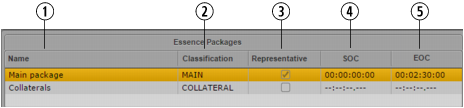
1 | Name | The name of the essence package. It is set automatically to “Main package” when the essence package is created by a workflow. You can change the name. |
2 | Classification | Essence packages are classified according to semantic criteria — for example, the purpose for which their essences are used. The classification is selected from a list. In the default configuration, the list contains the following values: • MAIN • COLLATERAL |
3 | Representative | For every asset there is exactly one representative essence package. The representative essence package is designated by a check mark in the Representative column. |
4 | SOC | The Start of Content (SOC) displays the start timecode of the accessible area of the essence that is contained in the essence package. It can be set manually or by a workflow; for example, to exclude color bars at the beginning of a video. |
5 | EOC | The End of Content (EOC) displays the end timecode of the accessible area of the essence that is contained in the essence package. It can be set manually or by a workflow; for example, to exclude black frames at the end of a video. |
Display | Description | |
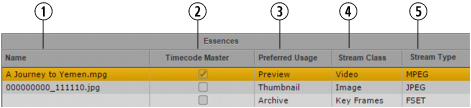
1 | Name | Shows the original name of the essence file. This is the name of the essence when it was imported or created in Interplay MAM. |
2 | Timecode Master | If the asset is a video or audio, an essence packages contains the essence for which the timecode is referred; for example, when a basic sequence is created. This essence is designated as the timecode master by a check mark in the Timecode Master column. The Timecode Master essence is determined automatically but you can change the assignment. |
3 | Preferred Usage | The intended usage of the essence. The usage is assigned to an essence when it is imported or created in Interplay MAM. It is extracted from the essence’s stream type and mapped to a fixed list of values: • Archive (PRESERVE, usage: preservation, archiving) • Editing (EDIT, usage: editing) • Distribution (DISTR, usage: transmission) • Preview (BROWSE, usage: browsing) • Thumbnail (THUMB, usage: representative image) • Auxiliary File (AUX, usage: auxiliary file within a stream consisting of multiple files) • File (ANY, usage: not defined or unknown usage, application may interpret from essence parameters) |
4 | Stream Class | The stream class of the essence. It is assigned to an essence when it is imported or created in Interplay MAM. It gives a top level indication of the primary content of the essence and is detailed by the stream type. The following stream classes are supported: • Video: visual, time- and spatial-coded content which usually contains sub content streams • Audio: audible, time-coded content • Image: visual, spatial-coded content • Image Sequence: visual, spatial-coded content with several pages (such as multi-paged TIFF, animated GIF) • Document: legible, formatted content, may be spatial-coded and paged (for example PDFs) • Text: legible unformatted content (without paging information), such as plain text or HTML (excluding referenced media) • Key Frames: visual, time- and spatial-coded discontinuous content • File: any other digital content |
5 | Stream Type | The file format of the essence. The stream type is recognized when an essence is imported or created in Interplay MAM. The base for determining the essence’s stream type is its file extension. Interplay MAM’s standard configuration provides a preconfigured mapping of file extensions and stream types. |
Display | Description | |
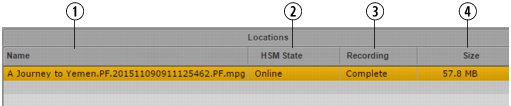
1 | Name | Shows the file name of the essence’s copy on that location. |
2 | HSM State | Hierarchical Storage Management state. Indicates the online status of the essence’s copy on that specific location: • Online • Near Online • Offline |
3 | Recording | Indicates whether the file is still being recorded to the specific location: • Recording • Complete |
4 | Size | Size of the essence’s copy on that location. |