Cleaning Up Essence Packages
You can delete files from essence packages in MediaCentral UX. For example, if you want to run a process that imports a modified video file into an existing asset, the process might require that the MAIN essence package is empty. To do so, you can start a Cleanup essence packages process from different panes:
• In the File Info and Media pane, you can clean up the essence packages of the asset open in the pane.
• In the Associations, Assets, and Search panes, you can clean up the essence packages of up to 50 assets at the same time.
Note the following limitations:
• You can clean up essence packages if you have the proper permissions in Interplay MAM.
• You can clean up essence packages of Interplay MAM assets only. In addition, this requires you to select the clean up process from the same MAM system that also manages the assets.
• The cleanup essence package process removes all files from the essence package but it does not delete the essence package itself.

If you plan to trigger the Cleanup essence packages process from a pane other than the File Info pane, check the essence packages to be cleaned up prior to invoking the clean up process.
To clean up essence packages:
1. Do one of the following:

Open an asset in the File Info pane.
Open an asset in the Media pane.
Open an asset in the Associations pane and select the assets whose essence packages you want to clean up (the source asset and any of its associated assets).
In the Assets pane, navigate to the desired folder and select the assets whose essence packages you want to clean up.
In the Search pane, conduct a search and select the assets whose essence packages you want to clean up.
2. Do one of the following:
Click the Pane Menu button and select Actions.
(Assets and Search pane only) Right-click and select Actions.
3. (Option) Select the MAM system on which the process is to be created. This must be the system from which the asset was opened.
4. Select the Cleanup Essence Packages process type.
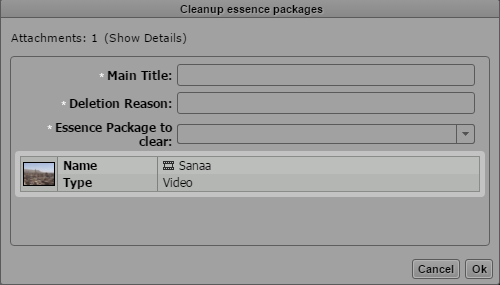
The Cleanup Essence Packages process dialog box opens and shows the selected assets as attachments.
5. Provide a main title and a cleanup reason.
6. Click the Essence Package to Clear list and select one of the following:
Representative: Clean up the representative essence package.
Collateral: Clean up all essence packages that are not marked as representative.
All: Clean up all essence packages.
7. Click OK.
The Cleanup Essence Packages process dialog box is closed and the cleanup process is triggered.
8. (Option) Open the Progress pane and monitor the progress of the cleanup process.
When all essence packages are cleared, the Progress pane shows a “Finished” message.
After cleaning up a representative essence package, you cannot play back the asset in the Media pane any longer. When you try to open the asset, the Media pane shows “Media Offline.”