Editing the Properties of an Essence
In the File Info pane, for the essence package selected in the Essence Packages area all essences are shown in the Essences area in read-only mode. For the essence selected in the Essences area, you can show properties in the Essence Details area; by default the Essence Details area is collapsed.
Use the Essence Details area to get an overview on technical properties of the essence and its values that are normally set by workflows and processes. In cases where the automatic classification was not correct, you can use the Essence Details area to correct values, for example, if a preferred usage was incorrectly assigned or to delete a timecode leap.
Your ability to edit essence properties in the Essence Details area depends on Interplay MAM user privileges and rules. For security reasons, the edit essence property privilege is not assigned to a user group by default but must be explicitly assigned to administrators in Interplay MAM. In the File Info pane, if a property is editable, a text box, drop-down menu, or other input control is displayed. For information on the different metadata fields and input controls, see
Viewing and Editing Interplay | MAM Metadata.
To edit the properties of an essence:
1. Open the asset for which you want to edit essence properties in the File Info pane.
2. Select the essence package in the Essence Packages area.
3. Select the essence in the Essences area.
4. Click the Expand button of the Essence Details area to display the details of the selected essence.
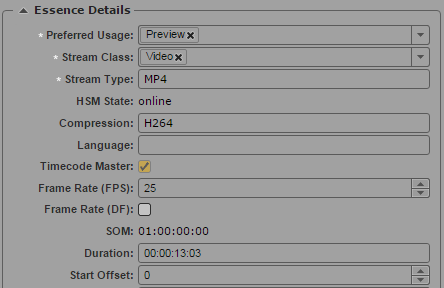
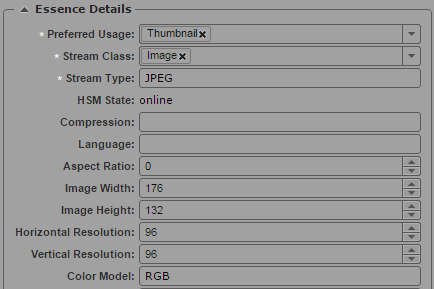
For each stream class the relevant properties are shown. Therefore the displayed properties differ depending on the stream class of the selected essence, as shown in the following examples.
5. To change an essence property, click in the respective field and modify the value as needed.
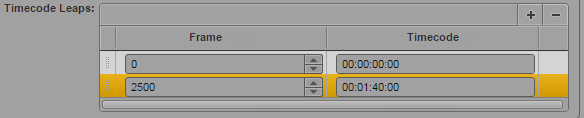
6. The timecode leaps define discontinuities of the timecode labels, where the first one at frame 0 defines the Start of Media (SOM). To edit timecode leaps, do one of the following:

To add a timecode leap, go to the Timecode Leaps table, click the Plus button, and enter the Frame number and the corresponding Timecode.
To remove a timecode leap, go to the Timecode Leaps table, select the row and click the Minus button
To save changed properties:
Click the Save button.
The save status message changes from “Unsaved changes” to “All changes saved.”
If you have unsaved changes and select another essence package, load another asset, or close the File Info pane, you are prompted to save the changes.