Editing Metadata
In the Metadata pane, if a property is editable, a text box, drop-down menu, or other input control is displayed. Depending on the configuration of the asset template in Interplay MAM, the metadata might be distributed in several sections on the Metadata pane.
Note the following:
• If you are editing an Interplay MAM asset, metadata is locked to prevent other users from editing the metadata at the same time. The lock is automatically set when you begin editing a metadata field. The lock is released when you end editing, load another asset, or close the Metadata pane. If another user opens the asset while it is locked, and clicks the Lock button or tries to edit the metadata, the tool tip for the Lock button reads “This metadata is locked by user <user name>.”
• You can cut, copy, and paste text between the Metadata pane and other applications.
• You can use the Tab key to move to the next editable text box or use Shift+Tab to move to the previous text box.
• If you select from a drop-down list and type a letter, MediaCentral UX filters the list to all values starting with that letter. As you continue to type, MediaCentral UX continues to filter the list according to the letters you type.
To open the Metadata pane:

Select Metadata from the Panes menu.
To view properties of an asset:
Double-click an asset in the Assets or Search pane.
To manually lock metadata:
Click the Lock button.
When the metadata is locked, the Lock button turns orange.
The metadata remains locked until you end editing, load another asset, or close the Metadata pane. You can manually unlock the metadata by clicking the Lock button. If you make an edit, the lock is automatically set again.
To edit single-value properties of an asset:
1. (Optional) If the metadata is grouped in different metadata sections, select the desired section from the Select View menu.
2. Click in a text box and enter text.
3. To edit a legal list property, click in the field and do one of the following:
Double-click the value or check its check box.
Navigate down the list using the Down Arrow key until you reach the desired value and press Enter.
Start typing the name of the value in the search box to filter the list, select the value, and press Enter.
4. To edit a thesaurus property, click in the field and do one of the following:
Navigate down the thesaurus using the Down Arrow key until you reach the desired term and press Enter.
Start typing the name of the term in the search box to filter the list, select the term, and press Enter.
5. To edit a master data property, click in the field, start typing the name of the value in the search box to filter the list, select the value, and press Enter.
6. To edit a date, time, or date-time property:
Highlight the figures you want to change and type in the new figures.
Click the field’s Down Arrow button and select the date from the calendar that opens.
7. To edit a timecode or duration property, click in the field and do one of the following:
Type in the figures, including “0”, from right to left.
Highlight the timecode and press Ctrl+V to paste a copied timecode.
8. To edit an integer or float property:
Type the figures, and if necessary, the decimal point.
Press the Up Arrow or Down Arrow key to increase or decrease the figures.
9. To edit a boolean property:
Check the check box to set the property to “true.”
Uncheck the check box to set the property value to “false.”
10. To save your changes, do one of the following:
Click the Save button, or click the Pane Menu button and select Save.
Press Ctrl+S (Windows) or Command+S (Macintosh).
To discard your changes, click the Refresh button, load a different asset, or close the Metadata pane.
To edit multi-value properties of an asset:
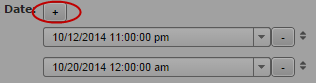
1. To add a new value to a multi-value property, click the Plus button.
A new value is added at the bottom of the list.
2. Edit the value for each individual field inside a multi-value property as you would for a single-value property.
3. Press the Tab key to move to the next property within the compound property or use Shift+Tab to move to the previous property.
4. To change the position of a value, click the drag icon to the right of the value, drag it and drop it between other values or at the beginning or end of the property’s value list.
5. To remove a property, click the Minus button to the right of the value.
6. Click the Save button, or click the Pane menu and select Save.
To discard your changes, click the Refresh button, load a different asset, or close the Metadata pane.
To edit compound properties of an asset:
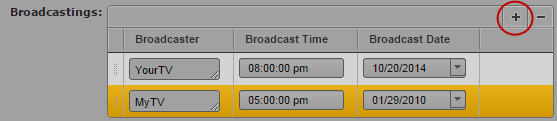
1. To add a new row to a compound property, do one of the following:
To add a new row below the last row, click the plus button.
To add a new row above a row, select the row and click the Plus button.
2. Edit every field as you would for a single-value property.
3. Press the Tab key to move to the next property within the compound property or use Shift+Tab to move to the previous property.
4. To change the position of a row, click the drag icon to the left of the row, drag it and drop it between other rows or at the beginning or end of the property’s table.
5. To remove a row, select the row and click the Minus button.
6. Click the Save button, or click the Pane menu and select Save.
To discard your changes, click the Refresh button, load a different asset, or close the Metadata pane.
To update the information displayed:
Click the Refresh button.
Related Topics