Extending a Segment into Another Timing Block
By default, video and audio edits do not cross timing block boundaries. If you try to extend a media segment beyond the boundary of a timing block, the timing block enlarges to match the duration of the segment. If you want to extend a segment beyond the timing block, for example, to create an L-cut, you need to use the extend segment feature.
A common L-cut involves replacing some of the video in a segment while keeping its audio. The extend segment feature allows you to extend video (and NAT if available) beyond the boundary of a timing block without affecting the SOT track and the VO track. Use the position indicator to specify the end point of the extended segment.
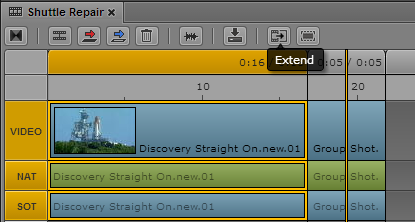
The following illustration shows a selected segment (Video plus NAT plus SOT) in the first timing block. The position indicator is in the middle of the second timing block, which is the location into which you want to extend the segment. The tool tip for the Extend/Retract button displays “Extend.”
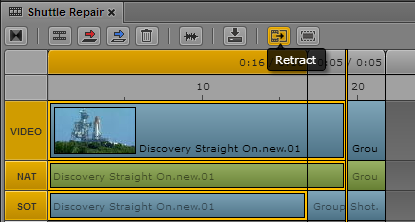
After you click the Extend/Retract button, the video and NAT for the selected segment extend into the second timing block. The selected video and NAT overwrite the video and NAT in the second timing block, without affecting the SOT. The Extend/Retract button turns orange and its tool tip changes to “Retract.” This indicates that the selected segment is extended and you can click the button to retract it to its original position, as shown in the following illustration.
You can return the extended segments to their original duration by clicking the Extract/Retract button to retract the segment.
To extend a segment:
1. Move the position indicator to the location to which you want to extend the video segment.
2. Select the segment.
You can select only a video segment and its associated audio segments (if available). Video, NAT, and SOT are selected, but only video and NAT will be extended. You cannot select or extend an audio-only track.
3. Do one of the following:

Click the Extend/Retract button.
Right-click and select Extend.
Press Ctrl+Shift+X (Windows) or Command+Shift+X (Macintosh).
The Extend/Retract button turns orange to indicate that the segment is extended into the next timing block. The tool tip for the button changes to Retract.
To retract a segment:
1. Select the segment.
2. Do one of the following:
Click the Extend/Retract button.
Right-click and select Retract.
The Extend/Retract button turns gray to indicate that the segment is retracted to the original timing block. The tool tip for the button changes to Extend.
Related Topics
 If you extend a segment over a hidden timing block, the timing block is displayed. See Showing and Hiding Empty Timing Blocks.