Editing a Sequence Associated with a Story
If you are a journalist working on a sequence associated with a story (a script sequence), you need to edit the clips in your sequence to match the script in your story. In MediaCentral UX, both the story segments and the Sequence pane include timing information to help you edit your script and your sequence.
In the Story pane, a script is divided into story segments. Each story segment has a timed length based on the read rate that is set in Avid iNEWS. In the Sequence pane, a sequence associated with a story is divided into timing blocks.
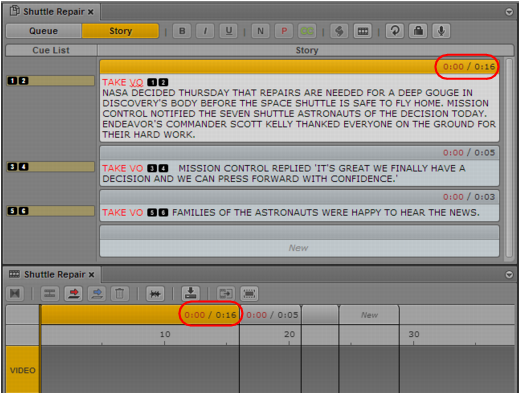
Each story segment is associated with a timing block. Both the story segment and the timing block show the same timing information: the duration of the media in the timing block and the duration of the text in the story segment. For example, 0:00/0:16 indicates that there is no media for a story segment that is 16 seconds long.
The following illustration shows a story with four story segments (including the default New segment) and a sequence with four corresponding timing blocks. The sequence does not yet contain any media, which is shown as 0:00 in the timing displays.

The previous illustration shows the Sequence pane in the horizontal orientation. You can change the orientation by clicking the Pane Menu button and selecting from the Orientation submenu.
As you edit the text in your script and the media in your sequence, the story segments in the Story pane and the timing blocks in the Sequence pane remain synchronized to help you edit media to match your script. See the following topics for more information:
Timing blocks are shown only for sequences associated with a story.