The Search Results List
The system returns assets that match the criteria of your search in the search results list. Above the result list, the “Search Results for” field repeats the key word or words you typed the Search text field; additionally the number of items found is shown.
The search result list shows metadata for all found items in an overview table with configurable columns. Depending on the type of item (iNEWS, Media, or MAM asset) you can select items in the result list and open them in other panes for subsequent editing. You can also drag items that represent media stored in the local Interplay Production server from the search results list to a folder in the Assets pane. If the asset includes both local and remote media, or if the media is offline, you cannot drag the asset to the Asset pane.
If the number of items found exceeds the configured maximum number of items that can be displayed at a time in Grid view or for federated searches, the Show More Results button is displayed at the bottom of the search results list. In Card view, you can view additional results by scrolling down the results list.
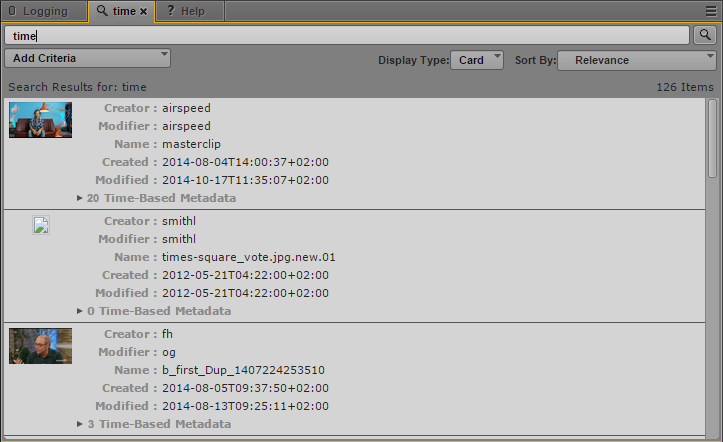
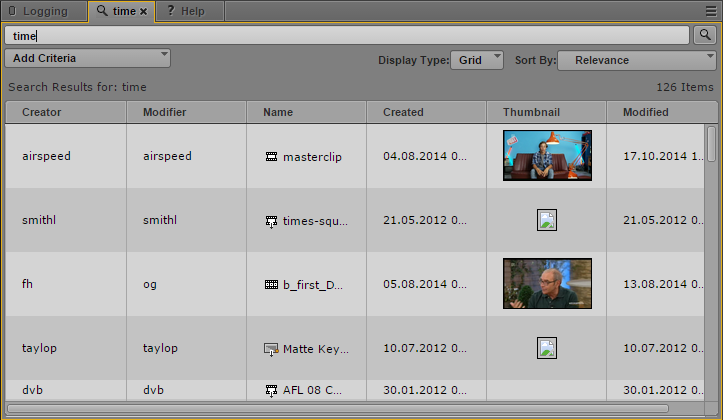
For indexed searches, you can view your results in Card view or in Grid view. Card view provides a summary of the metadata information in your search results, and Grid view displays your results in a grid with columns for each selected metadata category. Both views list the number of results your search has found. If your indexed search results include assets with time-based metadata, you can click the timecode link in Card view and open the asset at the position specified by the timecode. For example, if your search query matches text within a marker, clicking the timecode link opens the clip or sequence in the Media pane at the marker position.
Search results displayed in Card view
Search results displayed in Grid view
Indexed search results using criteria that include time-based values display a timestamp for the default time zone selected in the System Settings and appended by a Coordinated Universal Time (UTC) offset. For example, a timestamp of 04:30:00 AM -4:00 appearing in the search results list on a New York City system indicates that the time zone difference between New York (EDT) and UTC is four hours. In Paris (CEST), the same asset in a search results list displays a timestamp of 10:30:00 AM +2:00.

For reliable time-based search results, make sure that the iNEWS, Interplay Production, and MediaCentral servers all have the same time. If systems are not time-synced, assets that otherwise meet the search criteria might not be returned.
When you sort search results on a column that uses predefined metadata, the results are sorted by the actual value of the metadata field even though the results in the Search pane might display a localized label. For example, the stored index values for countries might be integer values, and these are the values used when sorting results. But the displayed values include the localized name of the countries, not the integer values, and the results might not follow the expected A-Z sort order.
To change the view of the results list of an indexed search:

Click the Display Type menu and select one of the following:
- Grid, to view a column-based results list.
- Card, to view a summary of search categories for each result. You can also view time-based metadata search results in Card view.
To sort search results, do one of the following:
For indexed searches, click the Sort By menu and select a category to sort your results. You can select one category at a time. In Grid view, you can also click the heading of the column you want to sort by.
You can use the Sort By menu to sort the results using a category that is not visible as a column in the search results list.
For federated searches, click the heading of the column you want to sort by.
An arrow appears in the column. How the column sorts the results depends on the content of the column. For example, the Name column sorts results alphabetically, starting from the lowest number and the first letter or the reverse.
To reverse the sorting order in Grid view or for federated searches:
Click the heading of the column again.
To view additional items in Grid view or for federated searches:
Click the Show More Results button.
Additional items are shown at the bottom of the search results list.
To add or remove columns from the Search pane:
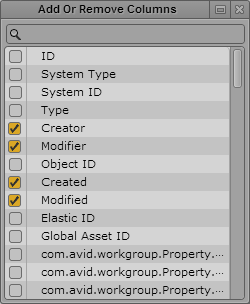
1. Click the pane menu and select Add or Remove Columns.
The Add or Remove Columns dialog box opens.
2. Select the columns you want to add or deselect the columns you want to remove.
You can use the search box to find a particular column.
3. Click the Close box or click anywhere outside the window to save your settings.
The Search pane displays the selected columns.
To open an item from the search result list, do one of the following:
For federated searches or indexed searches, double-click the item.
The asset opens in the Media pane. If the asset is a sequence and the Sequence pane is open, the asset is loaded in the Sequence Timeline. If the asset is an Interplay MAM asset and the panes are open, the asset opens also in the Logging, Metadata, and Thumbnails pane and its associations are shown in the Associations pane. For more information, see
Working with Video Media and
Using the Sequence Pane.
If the search results include matches for time-based metadata, expand the Time-Based Metadata area in Card view, and click the timecode link.
The asset opens in the Media pane at the location of the timecode. If the asset is a sequence and the Sequence pane is open, the asset is loaded in the Sequence Timeline.
To copy an item from a search result list to another folder:
Click the item you want to copy, and then drag it to a new folder in the Assets pane.
The asset is copied to the target folder.
You can only drag assets in the search result list that are stored on the local Interplay Production server to a folder in the Assets pane.
To export markers for one or more assets as an .xlsx file:
1. In the search results list (federated search only), select one or more assets that include markers.
2. Right-click and select Export Logs.
A Microsoft Excel file named logs.xlsx is saved to your default download folder.
For more information, see
Exporting Markers.
To create a shortcut to an asset:
Right-click and select Create Shortcut.
A link to the item is displayed in the Shortcuts section of the Launch pane. For more information, see
Creating Shortcuts to Assets, Folders, and Queues.
Related Topics