Creating Shortcuts to Assets, Folders, and Queues
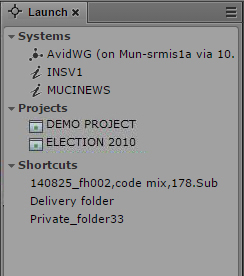
If you have specific assets, folders, or queues that you access often, you can create links for them and display them in the Launch pane. Double-click the shortcut in the Launch pane and the item is displayed in the Assets pane. You can create shortcuts for Interplay Production systems, Interplay MAM systems, and iNEWS systems.
You can create shortcuts from the Assets pane or the Search results list. Right-click an asset, folder, or queue and select Create Shortcut. In the Launch pane, right-click to rename or delete the shortcut. You can reorder the shortcuts by dragging and dropping.
To create a shortcut to an asset, folder, or queue:

In the Assets pane or the Search results list, right-click an item and select Create Shortcut.
A link to the item is displayed in the Shortcuts section of the Launch pane.
To rename the shortcut, do one of the following:
Right-click the shortcut, select Rename Shortcut, type the new name, and press Enter.
Select the shortcut, press F2, type the new name, and press Enter.
Select the shortcut, click it again, type the new name, and press Enter.
To reorder shortcuts:
Click a shortcut, drag it to a new location, and release the mouse button.
To delete a shortcut, do one of the following:
Right-click the shortcut and select Delete Shortcut.
Select the shortcut, click the Pane menu, and select Delete Shortcut
Select the shortcut and press the Delete key.
A confirmation message asks if you want to delete the shortcut. Click Delete.