Viewing and Working with Maestro Templates
You can view and work with Maestro graphic templates in the Maestro Browser pane. In the MediaCentral UX Maestro Browser pane, you are limited to editing the values of the controls.
To open the Maestro Browser pane:

Select Panes > Maestro Browser.
To view a graphic template:
In the Assets pane, double-click the graphic template you want to view.
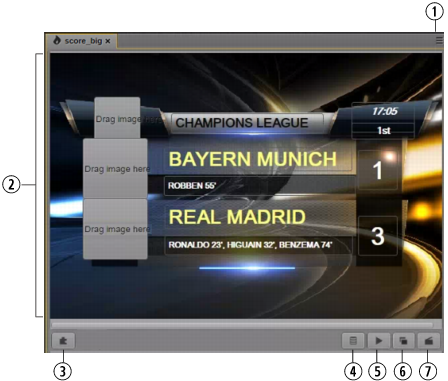
The graphic template opens in the Maestro Browser pane. The following illustration shows an example of a graphic template. This template includes “exports” that allow drag and drop of graphics (as indicated by “Drag image here”) and editing of text (as indicated by outline boxes). Buttons and controls are described in the accompanying table.
| Display or Control | Description |
1 | Pane menu | Lets you open the MediaCentral UX Help system. |
2 | Viewer | Displays the selected graphic template and lets you update data. |
3 | Drag and drop button (puzzle piece button) | Click this button and drag it to the iNEWS story to create a MOS production cue. See Adding a Maestro Graphic to an iNEWS Story. If the system setting “Save item in asset DB” is enabled, the Save button is displayed instead. See Saving a Maestro Graphic. |
4 | Refresh all data sources button | Refreshes data sources for templates that include data sources. |
5 | Play button | Renders the Maestro graphic and plays it in the MediaCentral UX Media viewer. As the graphic loads, the button shows the percentage loaded. |
6 | VSlot button | Opens controls for selecting VSlots (Virtual Slots). VSlots are like visual layers (in the preview or on-air). Different scenes can be played to different VSlots. The result would be one scene appearing superimposed upon another, or one scene loaded in the background (BG) waiting for a scene in the foreground to play out. It also allows you to select the output channels where a page will be displayed. For more information, see the Avid Maestro User’s Guide. VSlots are displayed as track labels when timed graphics are linked with a MediaCentral UX sequence. |
7 | Timecode button | Allows automatic cuing of a Maestro graphic at a specified time in a rundown queue. Graphics that use a timecode cue are referred to as timed graphics. You can set a timed graphic as a MOS object production cue. See Adding a Maestro Graphic to an iNEWS Story. Timed graphics are displayed as segments in graphics tracks when linked with a MediaCentral UX sequence. |
The following topics describe working with Maestro graphic templates: