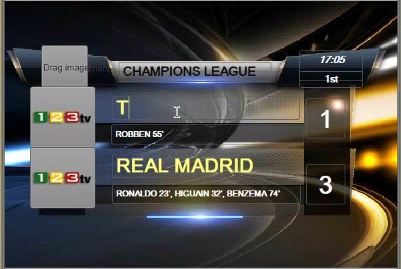
Editing and Previewing a Graphic Template
Maestro graphic templates are based on graphics that were created in a graphics program, such as 3Designer or 4Designer. A graphic artist creates “exports,” which are made editable by adding their controls to a page in the Maestro PageEditor so that a journalist can edit their content during a broadcast. Any export created in a 3Designer or 4Designer scene is available as a control in Maestro. For more information, see the Avid Maestro User Guide.
You can edit the value for the controls in the Maestro Browser pane. The following procedures describe how to add media and edit text.

Currently you can use Interplay MAM assets to create a Maestro graphic. You cannot use Interplay Production assets.
To add media to a graphic template:
1. Load a template into the Maestro Browser window.
2. In MediaCentral UX, use the Launch pane to open a MAM database.
3. Use the Assets pane to browse through the MAM database or use the Search pane to perform a search until you find a media asset you want to use for the final rendered graphic.
You can also use the Maestro Media Browser folders (CLIPS, IMAGES) to locate the desired media from the file system.
4. Drag the media asset to the Maestro Browser pane and drop it in the designated area.
To edit text in a graphic template:

In the Maestro Browser pane, double-click an outlined box and enter the text you want.
Starting with Maestro v7.1, you can connect to an Interplay MAM database and add Interplay MAM graphics to a Maestro template. For more information, see the
Avid Maestro User Guide.