Using the Media Distribute Layout
When you have created your system and user profiles, you can create and publish your packages using the Media Distribute layout in MediaCentral UX. The Media Distribute layout displays different options when you select Social Message, Web Story, or Packages in the Platform pane.
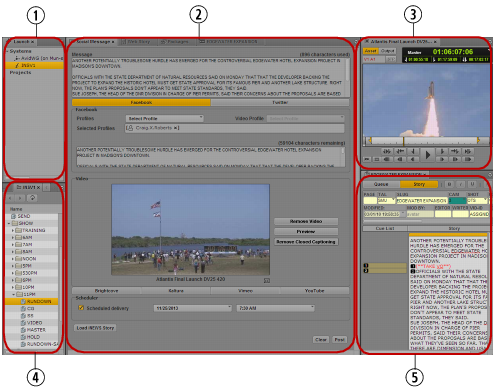
The following illustration shows the Media Distribute layout with Social Message selected in the Platform pane. For information on the Web Story and the Packages panes, see
Publish to the Web and
Review and Approval.

You can customize MediaCentral UX by adjusting a layout’s areas and panes. A single area can contain one or more panes. When an area contains more than one pane, the panes are displayed in a tabular format, with one pane on top of the others.
| Pane or Area | Description |
1 | Launch | A pane from which you navigate to various locations. This pane displays remote file systems, local file systems, and other locations for assets. |
2 | Media Distribute Creation area | An area in which you can select a platform for your package or review and confirm specific packages for the available targets.The options that display in the area change when you select one of the following panes: • Social Message — You use this pane to create packages for publication to social media sites. You can also schedule packages for delivery at a specific time. • Web Story — You use this pane to create packages for publication to Web Content Management Systems (CMS). The options available in this pane depend on which Web CMS settings your MediaCentral administrator has configured. • Packages — You use this pane to review and approve packages submitted for publication. The pane also displays a history of packages ready for publication and already published, which allows you to search all submitted and published packages. |
3 | Media | A pane in which you can view and edit media assets. The controls that are displayed depend on the selected asset. |
4 | Assets | A pane that displays assets. These assets can result from a search or from browsing. Assets are displayed in a folder hierarchy, if applicable to the assets displayed. |
5 | Queue/Story (iNEWS users only) | A pane that displays the contents of a queue with the contents of a selected story in the queue, including the story form and any production cues. It can only be opened from the Assets pane, and is therefore not listed as part of the Panes menu. |
To open the Media Distribute layout, do the following:

Click the Layout selector and select Media Distribute.
You can access the Media Distribute panes from any layout within MediaCentral UX, but you must be assigned one of the Media Distribute roles: Advance Journalist, Media Distribute Producer, or Administrator).
To open a new pane:
1. Select the Panes menu.
2. Select the menu option corresponding to the pane you want to open.
The pane you select opens in the active area. For more information, see
Working with Areas and Panes.