Property Types and Input Controls
The fields in the Metadata pane are linked to properties that describe an asset. Interplay MAM and MediaCentral UX support different property types and input controls.
Property Types
In Interplay MAM, the following three property types are distinguished:
• Single-value property: When you edit metadata that is allocated to a single-value property, there is only one field available in which to enter data, so only one value can be entered for this asset property. For more information, see
Editing Metadata.
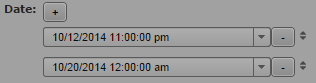
• Multi-value property: When you edit metadata that is allocated a multi-value property, there are several fields available in which you can enter data for this asset property as shown in the following illustration. Existing values can be changed or deleted, and new values can be added.
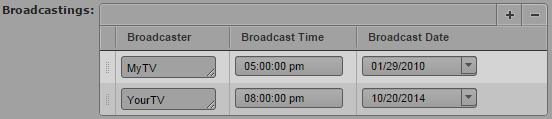
• Compound property: When you edit metadata that is allocated a compound property, you edit several properties that are combined into a single property. For each of these single properties you have several fields in which to enter data, just as you do for multi-value properties. The following illustration shows how three single properties (Broadcaster, Broadcast Time, and Broadcast Date) are combined into the Broadcastings property.
Input Controls
Depending on the configuration of the metadata template in Interplay MAM, you might encounter the following input fields when entering data:
Display | Field type | Description |
| Text | Text fields accept all characters. Input might be limited to a certain number of characters by the property configuration in Interplay MAM. |
| Date | Date fields are preformatted. The display format depends on the locale of your account. You can enter the entire Date value manually, or select it from a calendar tool. |
| Time | Time fields are preformatted. The display format depends on the locale of your account. |
| Date/Time | Date/Time fields are preformatted. The display format depends on the locale of your account. You can enter the entire Date/Time values manually, or select the date value from a calendar tool. |
| Timecode Duration | Timecode and Duration fields are preformatted for different timecode types (PAL, NTSC). They also support pasting copied timecodes. |
| Integer | Integer fields require figures. |
| Floating-point | Floating-point fields require figures and decimal points. |
| Boolean | Boolean check boxes differentiate between “applies” and “does not apply.” |
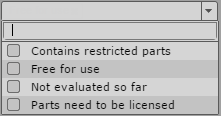
| Legal list | Drop-down lists provide the available values of a property. When you open a property of type legal list, the input control initially shows a search box and all values of the property. |
| Master data | Master data, for example, data records about producers, actors, and so on, consists of multiple distinct values. These multiple values are represented by one master data value, when used for annotation. When you open a property of type master data, the input control initially shows an empty search box. |
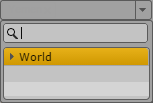
| Thesaurus | Thesauruses are mostly used to provide larger sets of invariant terms that can be assigned as values to a property. When you open a property of type thesaurus, the input control shows a search box and the name of the thesaurus to search in. |