Creating an Interplay | MAM Sequence
For Interplay MAM sequences, you define the target frame rate when you create the basic sequence. By default, you can add clips with a differing frame rate. Note that mixed frame rate editing might be disabled by configuration in Interplay MAM.
To create a basic sequence in the Interplay MAM database, edit it, and save it:
1. Select Panes > Sequence to open the Sequence pane.
2. In the Assets tab, select the folder in which you want to create the sequence.
3. Do one of the following:

Right-click and select Create Basic Sequence or Create Basic Sequence (audio-only).
Click the Pane Menu button and select Create Basic Sequence or Create Basic Sequence (audio only).
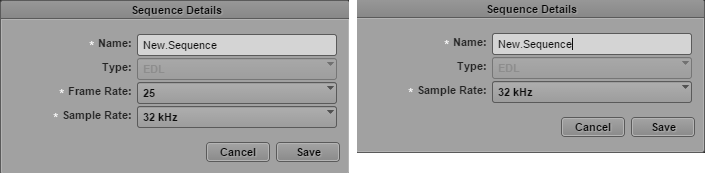
The Sequence Details dialog box opens. If you selected “Create Basic Sequence” the dialog box includes a Frame Rate menu and a Sample Rate menu. If you selected “Create Basic Sequence (audio-only)” the Frame Rate menu is not displayed. The following illustrations show both versions of the Sequence Details dialog box.
4. Type a name for the basic sequence in the Name field.
If you do not provide a name, a new basic sequence is created with the name New.Sequence. If there is already a basic sequence named New.Sequence, .01 is appended to the basic sequence name, and incremented for each unnamed new basic sequence (New.Sequence.02, and so on).
5. (Option) Select the basic sequence type from the Type list.
6. To define the frame rate of the video, do one of the following:
Select a predefined target frame rate from the Frame Rate list.
Type a value greater than 0 in the Frame Rate list field to define a customized frame rate.
7. To define the sample rate of the audio, do one of the following:
Select a predefined sample rate from the Sample Rate list.
Type a value greater than 0 in the Sample Rate list field to define a customized sample rate.
8. Click Save.
The new basic sequence is shown in the selected folder.
9. Double-click the basic sequence to open it in the Sequence pane.
10. Edit the sequence.
11. Save the sequence by doing one of the following:
Click the Save button in the Sequence pane toolbar.
Click the Pane Menu button and select Save Sequence.
With focus in the Sequence pane, press Ctrl+S (Windows) or Command+S (Macintosh).
 For information about working with assets whose media is stored on a remote location, see Working with Remote Playback (Interplay | MAM).