Ordering a Queue
As the stories in a rundown queue develop, the order in which they are presented in the newscast can change. Only individuals with the proper permissions to order queues (usually a member of the production staff) can do so.
Users with ordering privileges can select and move stories to change their sequence within a queue. You can select one or multiple stories, and you can reorder the rundown by dragging the stories to a new position and dropping them in the new location. An ordered queue can also be locked to prevent changes to the story sequence.
You can also hold the Ctrl key down as you drag a story to copy it from one location to another or from one queue to another. For more information, see
Copying Stories. When a show is underway, you can also “float” a story, which will keep the story in the queue but remove it from show timing, teleprompters, and machine control. For more information, see
Floating Stories.
To order a queue:
1. Open the queue you want to order.
2. Select the story you want to order. Ctrl+click to select multiple stories, or Shift+click to select a range of stories.
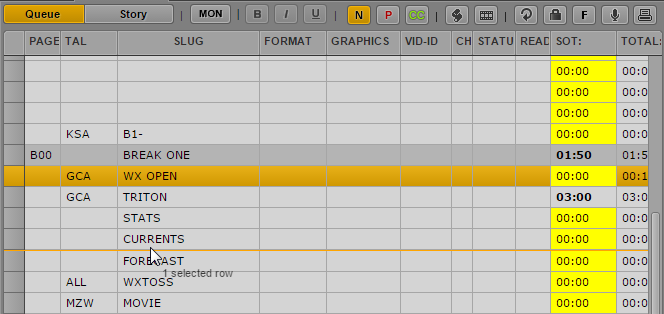
3. With the stories selected, place the mouse pointer on the first column of one selected story, and then drag the stories and drop them at the new location.
A line indicator shows the intended new order, and the repositioned stories appear in their new place within the queue when you release the mouse pointer.
If you reorder a queue, and the preferences were set in your iNEWS client or configuration to provide a confirmation of the action, MediaCentral UX displays a message asking you to confirm the story reordering. Click OK to complete the copy or Cancel to leave the queue unmodified. For more information, see “Setting Confirmation Preferences” in the Avid iNEWS User’s Guide.