Floating Stories
When you are unsure where in a rundown you want to place a story or whether you want to keep it in the rundown at all, you can float the story. Floating a story keeps it in the queue but removes the story’s time from the show timing, causing it to be ignored by machine control and the network prompters.
To float a story:
1. Open the queue containing the story with which you want to work.
For more information, see
Editing a Story.
2. Click a story to select it. Ctrl+click to select multiple stories, or Shift+click to select a range of stories.
3. Do one of the following:


Click the Float button in the toolbar.
Right-click and select Float.
Press Alt+F.
Click the Pane menu and select Float.
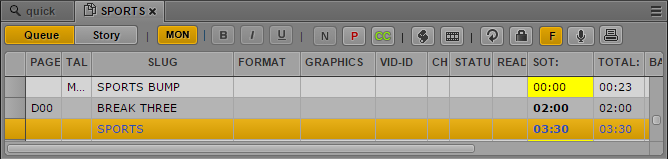
The story you chose is now floating, or removed from the show’s timing. The Float button is highlighted, and the floated story displays blue text in the queue.
4. To add the story time back to the rundown, click the Float button again or right-click and select Unfloat.