Associating a Sequence with a Story
In addition to using MediaCentral UX to create a new sequence for a story (see
Adding Media to a Story), you can associate an existing sequence with an iNEWS story. This lets you create a video sequence in MediaCentral UX or in Media Composer, and then later associate it with a story in the iNEWS database. You can associate only one sequence with a story, which then transfers metadata — such as the information in the fields of the iNEWS story form — from the story to the existing sequence.
For example, when you associate a sequence with a story, you can transfer the data from the Video ID field for the story to the Tape ID (Media Composer) or Video ID (MediaCentral UX) for the sequence. When you then send the sequence to playback, MediaCentral UX automatically sends the correct ID information to the playback device. See
Associating a Video ID with a Script Sequence.

If the story does not have a story (slug) name, the sequence name is used as the story name.
You can associate a sequences with only one story. If you try to associate a sequence with a story that is already associated with another story, a dialog box asks you if you want to duplicate the sequence. If you duplicate the sequence, a second sequence is created with a new sequence name: [sequence_name].duplicate. You can move the new sequence to another folder, and the sequence maintains its association.
If you associate a sequence with a story that already has a sequence associated with it, you can overwrite the existing association with the new sequence.
You can update the timing field for a story when you associate a sequence with it so that the duration of a story matches the duration of the sequence. If you unassociate a sequence from a story, the duration of the story returns to its original value. The following table illustrates the effect associating a sequence with a story has on the story timing.
Story Duration Value | Sequence Duration Value | Selected Timing Field Result |
1 minute | 2 minutes | 2 minutes |
2 minutes | 1 minute | 1 minute |
You can also use the Tape ID or Video ID of a sequence to update an iNEWS frame field, or use an iNEWS frame field to supply the value of a sequence Tape ID or Video ID if none exists. You set these options in the iNEWS group of the System Settings.
The following table provides an example of how this setting affects the metadata for associated sequences.
Sequence Tape ID or Video ID Value | Associated iNEWS Field Value | Sequence Tape ID or Video ID Result | Associated iNEWS Field Result |
empty | empty | empty | empty |
empty | ID-456 | ID-456 | ID-456 |
ID-123 | empty | ID-123 | ID-123 |
ID-123 | ID-456 | ID-123 | ID-123 |
You cannot associate a sequence with a locked story, and you must have write permissions to the story in order to associate a sequence.
To set options for associating sequences with stories:
1. Sign in to MediaCentral UX as an administrator.
2. Select System Settings from the Layout selector.
The System Settings layout opens.
3. In the Settings pane select iNEWS.
The Details pane displays the iNEWS settings.
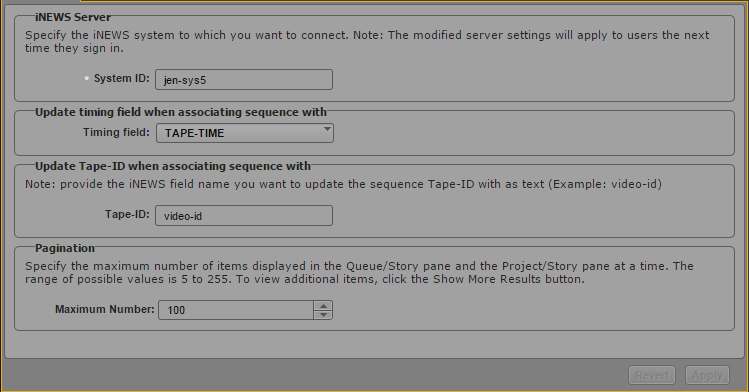
4. To specify how the timing field is updated, click the Timing field menu in the Details pane and select one of the following:
AUDIO-TIME | This field displays the estimated read time for a story. Unless specified manually, the estimated time is based on the length of the story and presenter’s read rate. If there is also a TAPE-TIME field in the story form, the system adds the TAPE-TIME to the AUDIO-TIME to calculate the story’s total time. |
TAPE-TIME | If there is an AUDIO-TIME field, the system adds tape time to audio time to calculate the story’s total time. |
MOS-DURATION | This field is required to allow duration information from MOS or CAP events to be included in calculations for CUME-TIME, BACK-TIME or TOTAL-TIME fields. The contents of MOS-DURATION field are only used if a RUNS-TIME field is present in the story. |
DURATION | This field can be used to store manually entered, suggested duration. The value is not used for time calculation in any other fields. |
For more information on these options, see “Form Field Types and Definitions” in the Avid iNEWS Setup and Configuration Guide.
5. To specify which iNEWS field you want to use to update the sequence Tape-ID metadata field, type the appropriate field name in the Tape-ID text box.
6. Click Apply to save your new settings or click Revert to replace changed information with the previously saved settings.
To associate a sequence with a story:
1. Open your story in the Queue/Story pane.
2. Open the sequence in the Interplay database that you want to associate with your story.
3. Drag the sequence from the Media pane, the Asset pane, or the results list in the Search pane, and then drop it on your iNEWS story.
You cannot undo this action. If you want to associate a different sequence with your story, select a new sequence and repeat the procedure.
The new sequence becomes an associated sequence.
To associate a sequence with more than one story:
1. Open your story in the Queue/Story pane.
2. Open the sequence in the Interplay database that you want to associate with your story.
3. Drag the sequence from the Media pane, the Asset pane, or the results list in the Search pane, and then drop it on your iNEWS story.
A dialog box opens and asks if you want to create a duplicate sequence.
4. Click Yes to create a duplicate sequence.
A duplicated sequence is created in the same folder as the original sequence, and it becomes an associated sequence.
To associate a different sequence with a story:
1. Open your story in the Queue/Story pane.
2. Open the new sequence in the Interplay database that you want to associate with your story.
3. Drag the sequence from the Media pane, the Asset pane, or the results list in the Search pane, and then drop it on your iNEWS story.
A dialog box opens and asks if you want to override the existing associated sequence with the new one.
4. Click Yes.
The new sequence replaces the old associated sequence.
To remove the associated sequence from a story, do one of the following:

Right-click the story in the queue, and then select Unassociate Sequence.
Select the story in the queue, click the Pane Menu button, and select Unassociate Sequence.