Saving and Opening Saved Dashboards
You can save dashboards to make it easy to access frequently used processes. Users can open a saved dashboard in a new Process Dashboard pane. All saved dashboards appear in the Launch pane. You can also edit a saved dashboard by opening it and modifying the parameters of the dashboard.
Saving a dashboard saves the current configuration of the Process Dashboard pane. This includes the following:
• Context of the dashboard
• Displayed columns and sort order
• Applied filters
• Selected diagrams and diagram display status
Opening a new Process Dashboard pane loads an empty pane and requires defining the context for the dashboard. The dashboard context does not affect Process Dashboard panes that you already have open, so you can keep other contexts by keeping the tabs open.
Saved dashboards are specific to the user. If you log in as Administrator, you can share a saved dashboard with other users by making it public.
To save a dashboard:
2. Click the Pane Menu button and select Save As.
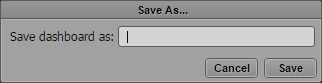
The Save As dialog box opens.
3. Type a name for the dashboard to be saved.
4. Do one of the following:

Click Save.
Press Enter.
The saved dashboard appears in the Launch pane’s Saved Dashboards group.
To open a saved dashboard:
Double-click a saved dashboard in the Launch pane.
Right-click the dashboard in the Launch pane and select Open in New Process Dashboard Tab.
The dashboard opens in a new Process Dashboard pane and shows the processes of the configured context.
To edit a saved dashboard:
1. Open the dashboard from the Launch pane.
2. Modify the parameters of the dashboard.
3. Save the dashboard.
The modified saved dashboard appears in the Launch pane.
To share a saved dashboard:
1. Log in to MediaCentral UX as a user with Administrator credentials.
2. Right-click a saved dashboard, and then select Create Public Dashboard.
The saved dashboard appears in the Public Dashboards area of the Launch pane and is available to all users.

You must have signed in as a user with Administrator role to edit a public dashboard.
To reorder dashboards:
Click a dashboard in the Launch pane, drag it to a new location, and release the mouse button.
You cannot drag a saved dashboard to the Public Dashboards area, and you cannot drag a public dashboard to the Saved Dashboards area. You must have signed in as a user with Administrator role to reorder a public dashboard.
To rename a saved dashboard, do the following:
Right-click the saved dashboard in the Launch pane, select Rename, and type the new name.
Select the saved dashboard in the Launch pane, click the Pane Menu, then select Rename, and type the new name.
Select the dashboard in the Launch pane, press F2 (Windows) or Enter (Macintosh), and type the new name.
To delete a saved dashboard:
1. Do one of the following:
Right-click the saved dashboard in the Launch pane and select Delete.
Select the saved dashboard in the Launch pane, click the Pane Menu, and then select Delete.
2. Click OK in the Delete Dashboard prompt that opens.
The dashboard is deleted and removed from the Launch pane.