Showing Desktop Notifications from Panes
Notifications from panes can be shown as browser alerts. This is useful if the browser running MediaCentral UX is minimized or hidden by other windows. Notifications are shown for the following:
• Jobs listed in the Progress pane (Interplay Production)
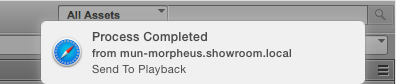
• Processes listed in the Progress pane (Interplay MAM): When a process is completed or has failed, a notification is shown.
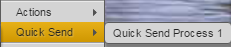
• Quick Send processes (Interplay MAM): When a Quick Send process is started, a notification is shown.
• Tasks listed in the Tasks pane (Interplay MAM): If the signed-in user has new tasks in his task list and the Tasks pane is open but hidden, a notification is shown.
• Messages received in the Messages pane. Click the notification to display the Messages pane.
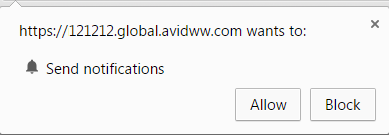
The first time you start MediaCentral UX after the initial installation, you see a message box that asks you if you want to allow or block notifications from the MCS server. Click Allow or Block.
Depending on your initial selection, you can later allow or block these notifications through your browser settings.
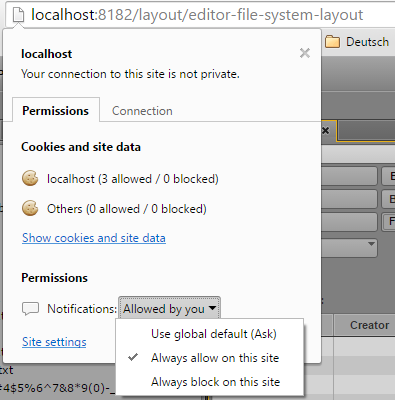
To allow or block notifications in Chrome:
1. Click the file icon in the URL bar.
2. Click the Permissions tab.
3. In the Permissions section, select one of the following options from the Notifications menu:
- Always allow on this site
- Always block on this site
To allow or block notifications in Safari:
1. Select Preferences from the Safari menu.
2. Click Notifications.
3. For the MCS server, select Allow or Deny.
An administrator can disable this feature for all users of an MCS server by adding the following line to the application.properties file:
system.client.desktopNotifications.enabled=false
For information about the application.properties file, see the MediaCentral Platform Services Installation and Configuration Guide.