The Assets Pane
Assets are items that are stored in a database, such as stories, scripts, video clips, and audio clips. From the Assets pane, you can view assets for items that are contained in the Launch pane. For example, if you double-click the name of an iNEWS system in the Launch pane, the Assets pane displays the contents of the iNEWS database.
After you sign in to MediaCentral UX, an empty pane labeled Assets is displayed in one of the application areas. After you open a system or project, the label of the Assets pane changes to reflect your selection, and you can browse the database or work with the assets that are displayed. You can also open multiple Assets panes, which appear as multiple tabbed panes within an application area.
The options you have for working with assets depends on the type of asset you select.
The following topics describe working with different types of assets:
To display assets in an Assets pane:

Double-click an item in the Launch pane.
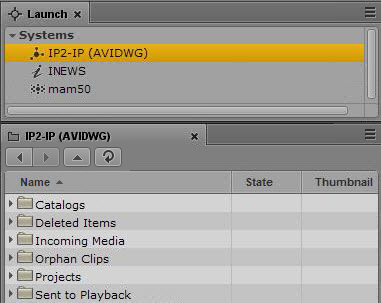
The following illustration shows the Interplay Production database selected in the Launch pane and its contents opened in the Assets pane below. The name of the highlighted system appears in the Asset pane’s tab.
To open an additional Assets pane, do one of the following:
Select Panes > Assets.
Right-click an item in the Launch pane and select Open in New Assets Tab.
The new pane is displayed next to a previously opened Assets pane.
If you closed the last open Assets pane, the new pane is displayed in an existing area.
To close an Assets pane:
Click the Close button on the Asset pane’s tab.

To ensure the Assets pane has focus, click an item in the pane, not an empty area of the pane.