Editing Stories
Using the tablet app, you can create a new story or edit an existing one. You can also change the title of story.
The system obtains an edit lock when you edit a story, which prevents other users from altering a story while you work on it. The edit lock applies only to the story body when you edit the body, and it applies only to the story title (the slug) when you edit the title in the sidebar or when you approve a story. When you start a new story, the edit lock applies both to the story body and the story title. Saving and closing the story, or discarding your changes, releases the edit lock.

If you want to open an iNEWS story or queue that has a key lock applied to it, you must type in the appropriate password for the story.
MediaCentral UX supports the standard editing features found in most text editing applications, including cut, copy, and paste.
You can use cut, copy, and paste to move text around within a single story or from one story to another. When cutting or copying text, the system stores the text in the clipboard. The clipboard stores only one block of text at a time, so whenever you cut or copy something new, the clipboard overwrites the previously stored text.
To edit an existing story:
1. Navigate to the existing story in the queue and open it.
2. Tap the Edit Story button.

3. Tap in the story to begin editing the text.
The app enters edit mode and displays the Edit toolbar and a virtual keyboard.
To edit text:
1. Tap and hold in the story to select text.
2. Select one of the following:


Tap the Cut button.

Tap the Copy button.

Tap the Paste button.
To add a new story:
1. 
Tap the Add Story button, located at the bottom of the sidebar.
The Add Story button only appears in the sidebar after you tap the Edit button in the sidebar.
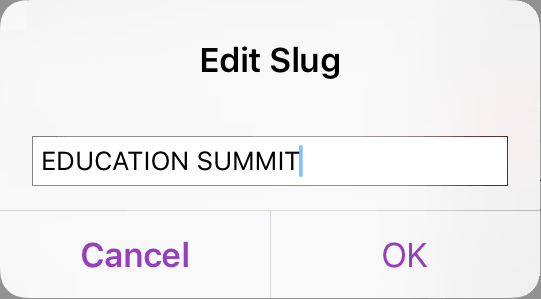
The Edit Slug dialog box opens.
2. Type the title of your story, and then tap OK.
A blank story is added to the current queue with edit mode already activated for the story. An edit lock prevents others from changing the story while you edit. The cursor moves to the blank title field.
When in edit mode (in the Script Editor), the app displays the Edit toolbar and a virtual keyboard.
The MediaCentral UX mobile app can also be used with a Bluetooth keyboard.
3. (Optional) Enter any production cues or machine control instructions.
To edit the title (slug) of a story:
1. Tap the Actions button.

2. Tap Edit Slug.
An edit lock on the story form in iNEWS prevents others from changing the story title while you edit.
3. When cursor appears, you can change the name of the story.
4. Tap OK.