Batch Metadata Editing
In the Metadata pane, you can edit only the metadata of the asset open in the pane. To support editing metadata of several assets at the same time, MediaCentral UX offers a feature called “batch metadata editing.” You can apply the batch metadata editing feature to assets selected in the Assets or Search pane.
Note the following:
• You can select assets of different types at the same time, for example, video and audio assets.
• The batch metadata editing feature changes the value of properties that are editable in all selected assets. Read-only properties and editable properties that are only available in a few of the selected assets cannot be changed.
• You cannot change the following property types using the batch metadata editing feature: duration, time code, multi-value, and multi-value compound.
• Assets that are locked by other users are excluded from the batch metadata editing action.
• If more than one Interplay MAM system is connected to MediaCentral UX, batch metadata editing is only available when your selection contains assets from the same Interplay MAM system.
To edit metadata of several assets at the same time:
1. Select the assets in the Assets pane or Search pane.
2. Do one of the following:

Click the Pane Menu button and select Batch Edit Metadata.
Right-click and select Batch Edit Metadata.
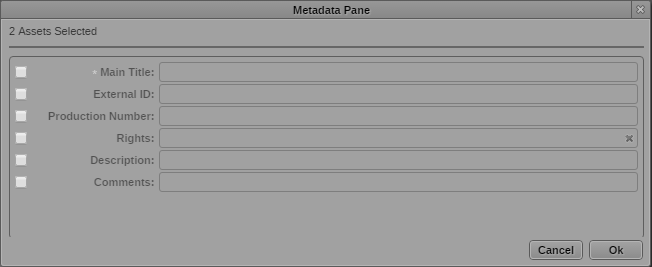
The Metadata Pane dialog box opens. It shows only editable properties that are available in all selected assets at the same time. Mandatory properties are marked with an asterisk.
3. Select the check boxes of the properties you want to edit.
4. Do one of the following:
Leave the text box empty. The old property value will be deleted in all assets.
Type a value in the text box or select a value from the input control. The old property value will be overwritten by the new value in all assets.
5. Click OK.
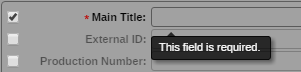
If you provided an empty value for an enabled mandatory field, you see a corresponding message. Provide a value or disable the check box of the mandatory field and click OK.
A security prompt opens.
6. Click OK.
The security prompt and the Metadata Pane dialog box are closed. The metadata changes are applied to all selected assets.