Viewing and Editing Interplay | Production Metadata
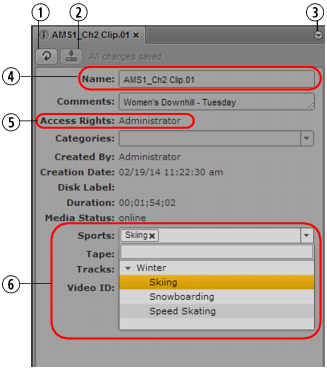
The Metadata pane displays properties that are associated with a selected asset in the Interplay Production database, such as Comments or Creation date. Some properties are created automatically and others you can create or edit manually. In the Metadata pane, if a property is editable, a text box or drop-down menu is displayed.
1 | Refresh button | 4 | Editable text box |
2 | Save button | 5 | Non-editable field |
3 | Pane Menu button | 6 | Custom property drop-down menu |
The properties that are displayed in the Metadata pane are determined by settings in the Property Layout view in the Interplay Administrator application. An administrator can select both system properties and custom properties as follows:
• On the System Properties tab, select items in the Inspector Default column.
• On the Custom Metadata tab, select items in the Inspector Default column.
A user must have write permission on an asset to add an identifier to an asset.
For information on system and custom properties, and assigning permissions, see the Interplay | Engine and Interplay | Archive Engine Administration Guide.
Note the following:
• You can cut, copy, and paste text between the Metadata pane and other applications.
• You can use the Tab key to move to the next editable text box or use Shift+Tab to move to the previous text box.
• Text is limited to 32,000 characters.
• The following characters are not valid for text in the Metadata pane:
- Interplay Production asset names: / \ | Enter
- Interplay Production folder names: * ? : / \ " < > | Enter
If you try to save information that includes an invalid character, an error message is displayed.

You can also display database properties in an Assets tab (see
Adding or Removing Property Columns). In an Assets tab, you can display any property from the database, but you cannot edit a property.
To open the Metadata pane:

Select Metadata from the Panes menu.
To view properties of an asset:
Double-click an asset in the Assets pane.
To edit properties of an asset:
1. Click in a text box and enter text, or select an entry from a drop-down list.
If you select from a drop-down list and type a letter, MediaCentral UX filters the list to all properties starting with that letter. As you continue to type, MediaCentral UX continues to filter the list according to the letters you type.
If you misspell a word in a text field, a wavy red line marks the misspelled word. You can right-click the word and open the browser’s spell-checker options. This feature is available for both Chrome and Safari browsers.
You can insert line breaks in a text box, such as the Comments box. However, line breaks are not supported when viewing metadata in Interplay Access or Media Composer. If the property is saved in Interplay Access, it is saved as a single line and is shown as a single line in MediaCentral UX.
2. Click the Save button, or click the Pane menu and select Save.
To discard your changes, click the Refresh button, load a different asset, or close the Metadata pane.
To update the information displayed:
Click the Refresh button.