Inserting Video Dissolves (Advanced Sequences Only)
You can insert a video dissolve to transition on center between segments in an advanced sequence. Dissolves can be set to transition from 2 to 300 frames, using even numbers only, with half of the frames used in the leading segment and the other half in the trailing segment.

Dissolves cannot be placed at the start of the first segment or the end of the last segment in a sequence. For any dissolve, you must ensure the source material has sufficient media to allow for the dissolve before Mark In or after Mark Out points. Also, the trailing half of one dissolve cannot overlap the leading portion of the next dissolve. In all of these cases, the system will issue messages indicating that a dissolve is not possible.
To insert a video dissolve between two segments:
1. Place the position indicator within two seconds of the cut between two segments in the timeline.
2. Do one of the following:

Click the Add Video Dissolve button in the Sequence pane toolbar.
Press the Backslash key (\).
Click the Pane Menu button and select Insert Dissolve.
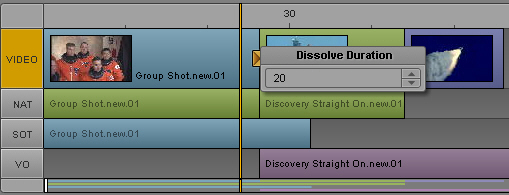
The following illustration shows a dissolve between the two segments of a sequence, which is indicated by the square Dissolve icon located just to the right of the position indicator.
The icon is a static size and does not change with dissolves of varying durations.
3. By default the duration of dissolves is set to 20 frames, divided evenly at 10 frames in the leading segment and 10 frames in the trailing segment. This can be changed, however, by double-clicking on the Dissolve icon or by right-clicking on the icon and selecting Modify Duration.
If altered, any new dissolve added to the sequence afterwards will have the altered setting for its duration.
You can change the default duration by changing the Dissolve Duration in the Sequence User Settings.
4. You can view the dissolve by positioning the position indicator in the Sequence Timeline at any point in the leading segment and then playing the output in the viewer of the Media pane.
Dissolves are associated with the leading segment, so if the leading segment is moved to the end of the sequence, the associated dissolve is automatically deleted.
To delete a dissolve:
Right-click the Dissolve icon and select Delete Dissolve.