Trimming an Advanced Sequence
For an advanced sequence, you can trim the video track, the audio track, or both video and audio.
To trim a segment using the mouse, do one of the following:

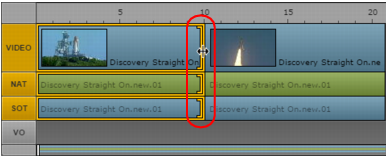
To trim both video and audio, click one end of the video segment and drag the trim indicator.
The following illustration shows both video and audio segments that can be trimmed from the end of the segment.
To trim only audio, click one end of the audio segment and drag the trim indicator.
To trim only video if the sequence includes audio from the same source, hold down the Ctrl key (Windows) or Command key (Macintosh), click one end of the video segment, and drag the trim indicator. Use this technique to create an L-cut. See
Using L-Cuts in the Timeline.
To trim a segment using keyboard shortcuts:
1. Click the end of the segment you want to trim.
2. Press one of the following keys:
M | Trim the segment’s selected end by 10 frames earlier. |
comma (,) | Trim the segment’s selected end one frame earlier. |
period (.) | Trim the segment’s selected end one frame later. |
slash (/) | Trim the segment’s selected end 10 frames later.  This keyboard shortcut is designed for an American keyboard; it may not work with another keyboard layout. |
The position indicator automatically moves to the trim location.