Adding and Removing Audio Segments
If a video clip is associated with one or more audio tracks, and you add the video clip in the Sequence Timeline, you can add or remove its associated audio segments. For example, if a sequence contains a video segment and its associated NAT segment, you can add a SOT segment. If a sequence contains a video segment without audio, you can add a NAT segment, a SOT segment, or both.
Similarly, you can remove a NAT segment, a SOT segment, or both.
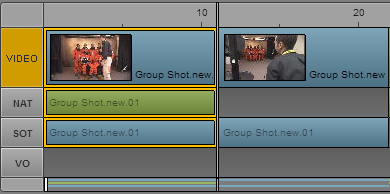
The following illustration shows a video segment with associated NAT and SOT segments. If a video segment and associated NAT and SOT tracks are included in the timeline, the video segment is colored blue and matches the SOT segment.
This feature applies only to the segment you select. It does not affect the audio in other segments of the sequence.

Enabling the track selector for NAT or SOT does not affect this feature.
To add a NAT or SOT segment:

Right-click a segment in the Sequence pane and select one of the following:
- Add audio segment > NAT
- Add audio segment > SOT
A check mark indicates if an audio segment is included in the sequence.
To remove a NAT or SOT segment:
Right-click a segment in the Sequence pane and deselect one of the following:
- Add audio segment > NAT
- Add audio segment > SOT
The check mark is removed.