Performing an Overwrite Edit in a Basic Sequence
If you are editing a basic sequence (Interplay Production or Interplay MAM), you can use the Overwrite feature to replace a portion of the sequence with a clip that is loaded in Asset mode. There are two ways to perform an overwrite edit:
• Click the Overwrite button or press the B key. This method provides you with more options:
- You can use the position indicator as an In point for the overwrite.
- You can perform the overwrite edit from either Asset mode or Output mode.
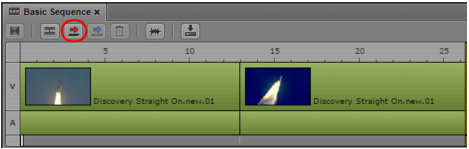
The following illustration shows the Overwrite button circled.
• Drag a clip from the Media viewer and drop it on the Sequence Timeline. This method is a quick way to build a sequence but has fewer options.
- You can overwrite only from the beginning of a video segment.
- You can drag only when the Media pane is in Asset mode.
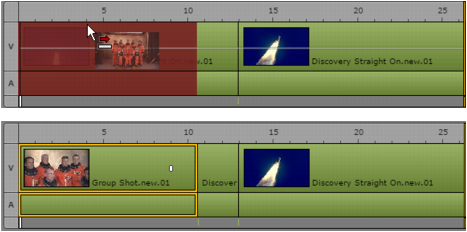
The following illustration shows how an overwrite edit is displayed when you drag a clip to the timeline. A thin guideline is displayed through the video track. If you release the mouse button above the guideline, you perform an overwrite edit, as indicated by the red arrow and red overlay. The resulting edit is also shown.

The examples in this topic use a horizontal timeline. If you are editing a sequence in a vertical timeline, the guideline is also vertical, and the edits are determined by dragging to the left or to the right of the guideline.
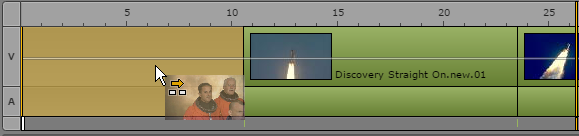
If you release the mouse button below the guideline, you perform an insert edit, as indicated by the yellow arrow and yellow overlay.
Note the following:
• If you use the drag and drop method, and you drop your clip in the Sequence Timeline before the guideline appears (approximately 0.5 second), you perform an insert edit instead of an overwrite edit.
To perform an overwrite edit using the Overwrite button or B key:
1. Load a clip in the Media pane and mark In and Out points.
The amount of material that you overwrite is determined by the In-to-Out duration marked on the clip.
When you use this method, the Media pane can be in either Asset mode or Output mode
2. In the Sequence Timeline, move the position indicator to the location where you want to start the overwrite.
3. Click the Overwrite button or press the B key.
The selected material overwrites the material in the timeline and the position indicator moves to the first frame of the next segment.
To perform an overwrite edit using drag and drop:
1. Load a clip in the Media pane and mark In and Out points.
The amount of material that you overwrite is determined by the In-to-Out duration of the asset.
When you use this method, the Media pane must be in Asset mode.
2. Drag the clip from the Media viewer to a location in the video track of the Sequence Timeline. Make sure the mouse pointer is above the guideline in the middle of the track.
The timeline shows where the overwrite will take place.
Do not release the mouse button before the guideline appears (approximately 0.5 second) or you perform an insert edit instead of an overwrite edit.
3. Release the mouse button.
The selected material overwrites the material in the timeline and the position indicator moves to the first frame of the next segment.
Related Topics