Recovering Sequences
When you work in MediaCentral UX, the state of your sequence is periodically stored on your local Windows or Macintosh system. This feature is helpful in case of a disconnection or service failure, or if you close a browser session without saving your work. This feature is also helpful if your administrator sets an automatic session timeout.
Each edit you make is stored, so that the state of the sequence after the last edit can be restored in case of a crash or timeout, and no edits are lost.
You can recover your sequence in several different ways:
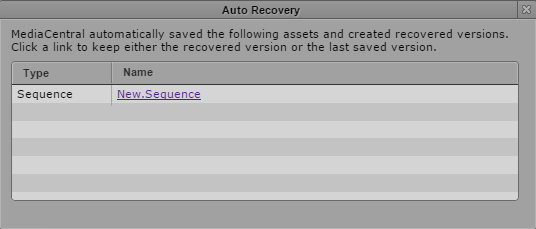
• If a disconnection or failure occurs and you remain signed in, the editing functions of the Sequence pane are deactivated, and the Auto Recovery dialog box is displayed, as described below.
• If the disconnection or failure results in the need to sign in again, the Auto Recovery dialog box is displayed and lists assets with unsaved changes.
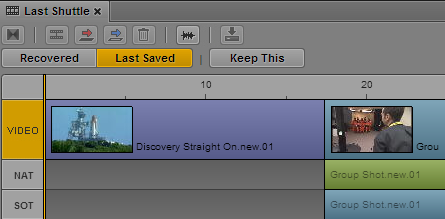
Click the name of the asset to open the last saved version. If the asset is a sequence, the Sequence pane displays three additional buttons:
- Recovered: Click this button to open the recovery file (from the local system).
- Last Saved: Click this button to open the last saved file (from the Interplay Production or Interplay MAM database).
- Keep This: Click this button to save the version that you display and delete the other version.
You can switch back and forth between versions to compare them, and click the Keep This button when you decide which version to keep.
• If you close the Auto Recovery dialog box without selecting an asset, you can select Auto-Recovered Assets from the Sequence pane menu to display the Auto Recovery dialog. This option appears only if auto-recovered assets are available.
 For information about recovering stories, see Recovering Stories In Case of Disconnect.