Displaying Media Status in the Timeline
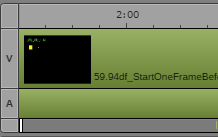
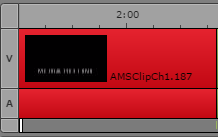
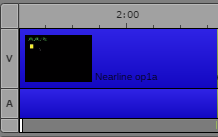
Colored segments present a quick way to determine the media status of segments in the Sequence timeline. The following table lists the types of status and a colored segment that displays the status.
Status | Color | Example |
Online, always shown | green | |
Offline, always shown | red | |
Proxy-only, shown if Media Status is selected | yellow | |
Nearline (Interplay MAM only), shown if Media Status is selected | dark blue | |
The following sections provide more information.
Offline Media
Segments whose media is shown as offline in the Media viewer are always colored red in the Sequence timeline. Segments can have video and audio offline, only video offline, or only audio offline. Segments can have video and audio offline, only video offline, or only audio offline.
This feature is especially useful when you use the Review for Playback feature to review a sequence for STP. If you are working with multi-resolution clips, and the STP target resolution is not available, clips could be online (green) in the sequence but offline (red) after you click the Review for Playback button. For more information, see
Reviewing in the STP Target Resolution.

Segments with partially online media are displayed as online (green).
Proxy-Only Media and Nearline Media
Starting with MediaCentral UX v2.9, you can display the following media status in the Sequence timeline:
• Proxy-only: Interplay Production and Interplay MAM, colored yellow. Which resolutions are considered proxy resolutions is determined by Interplay Production or Interplay MAM. A segment is considered to have proxy-only media if only the proxy resolution is available, whether or not it was originally recorded with a high-res version.
• Nearline: Interplay MAM, colored blue. Nearline media is not available in all required resolutions but is possibly fully or partially available on a remote workgroup or archive.
To display media status, click the Sequence Pane menu and select Show Media Status.
A single segment might display more than one status, for example, a segment for which one part has only the proxy media available. In this case, the part of the segment that has only proxy media is yellow and the remaining part of the segment is green (full-res media available), as shown in the following illustration.