Creating a Basic Sequence with Group Clips
Complete editing support for group clips is available only in basic sequences. You can create a basic sequence exclusively of group clips, or combine group clips with master clips. You can select the camera angle and audio mapping for group clips in the sequence.
MediaCentral UX also supports editing of sequences created in Media Composer, Avid Symphony, or NewsCutter that contain group clips, if the sequence consists of cuts only (for example, a shotlist).
To add a group clip to a sequence:
1. Open the Sequence pane.
2. Load an existing basic sequence or create a new one.
3. Do one of the following:

In single-angle view, display the active angle you want to use in the sequence and drag it to the sequence timeline.
In multi-angle view, click and hold the angle you want to use and drag the clip to the sequence timeline.
To change the angle of a group clip in a sequence:
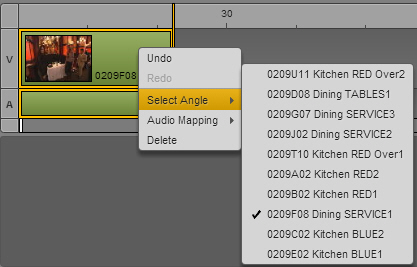
Right-click the group clip or segment of a group clip, select Select Angle and the angle that you want to display in the sequence.
You can also use the same keyboard shortcuts you use when selecting an angle in the Media pane: Alt+Up Arrow, Alt+Down Arrow, and Alt+1 through Alt+9.
The following illustration shows a group clip with 10 available angles.
You can change the active angle while the sequence is playing.
- If you use the mouse to select the angle, playback stops.
- If you use keyboard shortcuts to select the angle, playback continues.
To change the audio selected for a group clip in a sequence:
Right-click the group clip or segment of a group clip, select Audio Mapping, select the audio track you want to map, and select the angle for the audio.
The following illustration shows a group clip with four audio tracks.
You can change the audio track while the sequence is playing, but playback will stop.
 You can add an active angle to an advanced sequence. See Adding an Active Angle of a Group Clip to an Advanced Sequence.