Selecting the Active Angle in Asset Mode
The active angle determines which camera angle is displayed in single-angle view and which angle is used when you add the group clip to a sequence. In multi-angle view, an orange bounding box marks the active angle.
The default angle displayed is the last active angle saved in the AAF file and the Interplay Production database, regardless of the user. If an active angle is not yet set (for example, the clip is being loaded for the first time), angle 1 (V1) in the group clip is displayed.
If you change the active angle during your MediaCentral UX session, the active angle persists until you sign out or close the session. If you open the group clip in a different session, the active angle will be the last active angle saved in the Interplay Production database, which might not match the last active angle you selected in your previous session.
To change the active angle displayed in Asset mode, do one of the following:

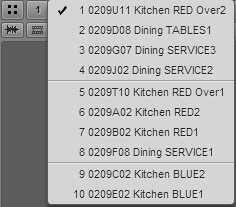
Click the Active Angle button and select an angle from the menu.
The following illustration shows angle 1 selected from the 10 angles that make up the group clip. In this example, the group clip is displayed in a 2x2 grid, so lines divide the list into two banks of four angles and one bank of two angles. For a 3x3 grid, the list is divided into banks of nine angles.

The order of the clips that compose a group clip is determined by how the clip was created in the Avid editing application.
Press a key combination:
- To select a specific camera angle, press Alt+angle number (Alt+1, Alt+2, Alt+3 up to Alt+9).
If a group clip is divided into banks, and an angle is not displayed in the bank, the display automatically changes to the correct bank.
- To select the next consecutive camera angle, press Alt+Down Arrow.
- To select the preceding camera angle, press Alt+Up Arrow.
You can change the active angle while the clip is playing and the clip continues to play.
The active angle persists throughout your session, but it is not saved in the Interplay Production database.
For information about changing the camera angle in the Sequence Timeline, see
Creating a Basic Sequence with Group Clips.