Sending Messages
The Messages pane allows you to share text messages, Interplay Production assets, Interplay MAM assets, and links to Web pages with other MediaCentral UX users. You can also share messages with Avid Media Composer users who log on to MediaCentral UX.
You can also send messages without opening the Messages pane if you want to send a media asset to another user.
When you share an Interplay Production or Interplay MAM asset, the recipient can double-click to open it in the Media pane. A media asset shared with a Media Composer user opens in the Source/Record monitor in the Avid editing application.
To write a new message:
1. Do one of the following:

Open the Messages pane.
Right-click an asset in the Assets pane and select Share.
(Interplay MAM only) Right-click a folder in the Assets pane and select Share.
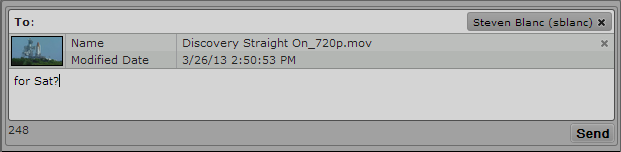
If you open the Messages pane, an address text box appears at the top of the pane. If you just want to share an asset, an address text box opens.
2. In the address text box, start typing the name of the recipient or the name of the user group for your message.
A list of MediaCentral UX users or groups displays as you type.

If you type an invalid name, the name changes to red and you receive an error message. You can only send messages to users and user groups on the MediaCentral UX Users list.
3. Select a name from the list or complete the name by typing it in the address box.
You can add multiple names to the address box.
4. If you want to share a media asset, do one of the following:
Click the asset in the Assets pane and drag it to the asset area of the message.
Click the asset in the Search pane and drag it to the asset area of the message.
Click the asset displayed in the Media viewer in Asset mode and drag it to the asset area of the message.
(Interplay MAM only) Click the asset in the Tasks pane’s asset area and drag it to the asset area of the message.
A head frame of the video asset or a clip icon of an audio asset displays in the message, along with metadata describing the asset.
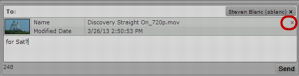
You can remove the asset by clicking the Remove button in the asset area.
Asset area of the message, with the Remove button
5. In the message text box, type your message.
A character count below the message displays the number of characters allowed in your message. You can type a total of 256 characters.
6. Click Send.
The message is sent to the MediaCentral UX users listed in the address test box and displays as a sent message at the top of your message list. Messages sent by you display with a blue background.
To reply to a message:
1. Position the mouse pointer over the address line of the message to which you want to reply.
The Reply button displays on the right side of the address line.
2. Click Reply.
The address text box in the top of the Messages pane automatically adds the names of the recipients from the selected message.
3. In the message text box, type your message. You can also share a media asset by dragging it to the asset area of the message.
A character count below the message displays the number of characters allowed in your message. You can type a total of 256 characters. If you share an asset, a head frame of video clip or a clip icon for an audio clip displays in the message
4. Click Send.
The message is sent to the MediaCentral UX users listed in the address text box and displays as a sent message at the top of your message list.