Viewing Messages and Linked Assets
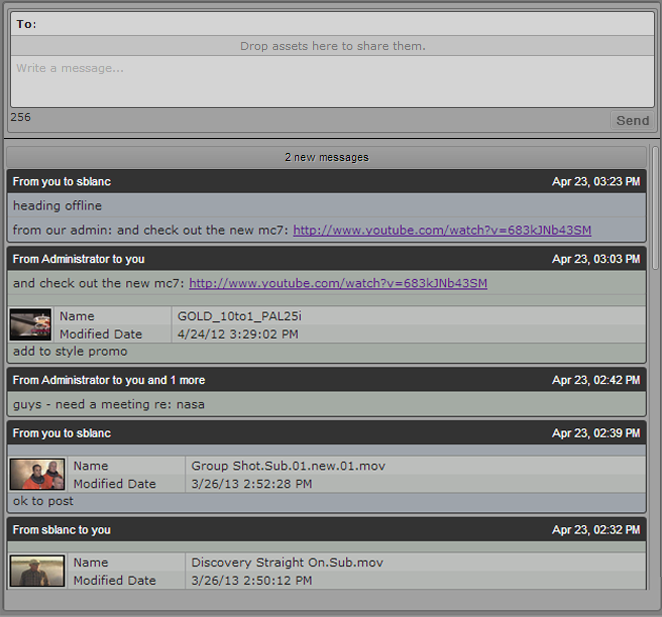
When you receive messages sent by other MediaCentral UX users, the Messages pane displays a notification at the top of the message list indicating unread messages. Clicking the notification or scrolling up loads the messages, with the most recent ones at the top of the message list.
To view messages:
1. Open the Messages pane.
2. If you received messages since the last time you logged in to MediaCentral UX, click the notification bar or scroll up.
New messages display in the message list, with the most recent message at the top.
3. If the message includes a media asset, do one of the following:

Double-click the head frame in the asset area to view the media or story.
Right-click and select “Open in Enclosing Folder.”
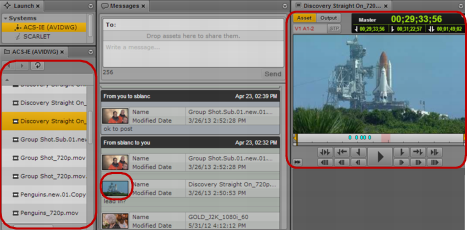
Double-clicking the asset opens the clip in the Media pane. For an Interplay Production asset, the Assets pane updates to the location of the clip in the Interplay Production database and selects the linked clip. For an Interplay MAM asset, the Metadata pane shows the metadata of the asset, and if the asset is a basic sequence it is shown on the Sequence pane.
Left to right: Asset pane with the linked clip highlighted, head frame of the linked clip in the asset area of the message, and the linked clip viewed in the Media pane.
If you open the asset in an enclosing folder, a new Asset pane opens and highlights the asset.

You must have the appropriate privileges to view media checked in to Interplay Production or Interplay MAM.
4. (Interplay MAM only) If the message includes a link to a folder, double-click the folder icon in the asset area.
The Assets pane navigates to the folder in Interplay MAM and shows the asset references saved in the folder.
5. If the message includes a link to an external Web site (using a URL), you can click the link to open the Web page in a separate browser tab.