Working with Diagrams
Diagrams give you a visual summary of processes visible in the Process Dashboard pane. If toggled on, diagrams are displayed in the Diagrams area above the Process List. You can show the following diagrams:
Diagram | Description |
| The “Active Processes” gauge chart displays the number of processes that are in life-cycle status “Running.” The blue chart indicates the minimum value (always 0), the current number of active processes, and the maximum number of running processes (at least 10). |
| The “Process Lifecycle” pie chart displays a process count per process life cycle. The slices indicate: • Pending: gray slice, number of pending processes • Running: blue slice, number of running processes • Finished: green slice, number of successfully finished processes • Error: red slice, number of failed processes When you hover the mouse pointer over a slice, a tooltip shows the life cycle and number, such as “Running - 135” |
| The “Top Process Groups” bar chart displays a process count per process group. The 10 groups having the highest number of processes are shown in gray bars. When you hover the mouse pointer over a bar, a tooltip shows the process group name and the number of its processes, such as “Import File - 8” |
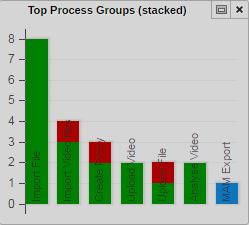
| The “Top Process Groups (stacked)” bar chart displays a process count per process group specified by life cycle. The 10 groups having the highest number of processes are shown. In each bar, the colors indicate the share of processes in that group with the respective life cycle of pending (gray), running (blue), completed (green), and failed (red). When you hover the mouse pointer over a bar element, a tooltip shows the process group name, life cycle, and number of processes, such as “Import Video - Running - 3” |
| The “Top Processes Duration” bar chart displays 10 processes with the highest “elapsed time” duration in red bars. When you hover the mouse pointer over a bar, a tooltip shows the process title. |
The Diagrams area is updated automatically upon process changes, matching the dashboard context settings and filter criteria.
You have the following options for displaying diagrams in the Process Dashboard pane:
• You can show and hide the Diagrams area
• You can show and hide individual diagrams
• You can reorder the displayed diagrams
• You can maximize, restore, and close individual diagrams
To show and hide the Diagrams area:

Click the View Diagrams button so it turns orange.
The Diagrams area is shown above the Process List. The diagrams selected in the Add or Remove Diagrams dialog box are displayed. If no diagrams are selected, a “Open the pane menu to add diagrams” message is shown.
Click the orange View Diagrams button so it turns gray.
The Diagrams area is hidden.
To add and remove diagrams:
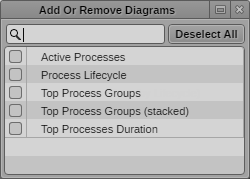
1. Click the Pane Menu and select Add or Remove Diagrams.
The Add or Remove Diagrams window opens. It shows all available diagrams. No entry is selected by default.
2. Select the diagram you want to display or deselect the diagram you want to hide.
To deselect all entries at the same time, click the Deselect All button. You can use the search box to find a particular diagram.
3. Click anywhere outside the window to apply the selection.
The Diagrams area updates. Initially it shows the selected diagrams in the order they are listed in the Add or Remove Diagrams window (left to right). Deselected diagrams are hidden, newly selected diagrams are shown to the right of the Diagrams area. The selection is saved with the dashboard context and persists from one session to another.
To reorder diagrams in the Diagrams area:
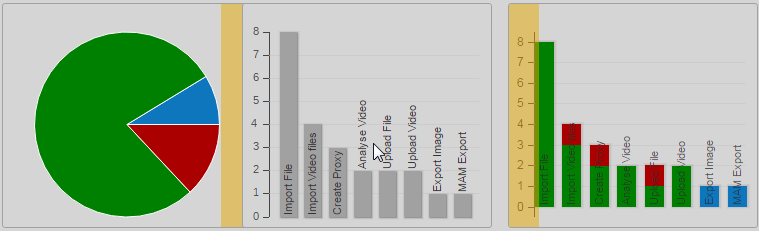
Click a diagram and drag it between two other diagrams. A highlight indicates the drop zone.
After dropping, the Diagrams area is refreshed and shows the reordered diagrams.
To show diagram controls:
Position the mouse pointer on the diagram in the Diagrams area.
On the top of the diagram the diagram title, a Maximize/Restore Diagram toggle button, and a Close Diagram button are shown.
To maximize a diagram, do one of the following:
Double-click the diagram in the Diagram area.
Position the mouse pointer on the diagram in the Diagrams area and click the Maximize Diagram button.
The Process List is hidden and the diagram fits to the pane size. The diagram title and a Restore button are shown. For Process Lifecycle and Top Process Group (stacked) diagrams, a legend is shown.

Do not click the legend. Clicking a legend entry shows and hides the corresponding diagram entry. If you restore the diagram while an entry is hidden, it is also hidden in normal size but you cannot show the entry again.
To restore a diagram, do one of the following:
Double-click the maximized diagram in the Process Dashboard pane.
Click the Restore button of the maximized diagram.
With a maximized diagram open in the pane, click the Display Diagram toggle button twice on the toolbar.
The Process List and Diagrams area are shown. The diagram is shown on the Diagrams area in normal size.
To close a diagram:
Position the mouse pointer on the diagram in the Diagrams area and click the Close Diagram button.
The diagram is closed and removed from the Diagrams area. The display of the Diagrams area is refreshed. You can show the diagram again by using the Add or Remove Diagrams option.